

Seedream 5.0 Lite workspace

Seedream 5.0 Lite AI Image Generator

Create clean AI images with Seedream 5.0 Lite in a focused Lovimg workspace. Write a prompt, upload visual inputs when they help, choose the aspect ratio, pick 2K or 3K output, set the image count, and keep every finished result in your private generation history.

History
Text
Your Seedream results will appear here after generation.

Seedream prompt examples

Selected from Lovimg Featured prompt imports that match Seedream workflows: visual edits, product scenes, structured posters, portraits, and system-style compositions. The image links are hardcoded for a fast and stable landing page.

Seedream 5.0 Lite is useful when a prompt needs structured composition, visual inputs, broad aspect ratios, and controllable batch output inside one private workspace.

2K and 3K outputs

Choose a compact 2K draft or a larger 3K pass from the same console, without changing the prompt or leaving the page.

Image-guided edits

Upload visual inputs for faces, products, outfits, screenshots, sketches, layouts, or scene structure, then explain what should change.

Up to 15 images

Use the output count chip for quick exploration, campaign options, design variants, or batch testing before selecting the strongest result.

Private compare board

Lovimg saves completed Seedream tasks in your account and shows the latest nine results beside a large uncropped preview.

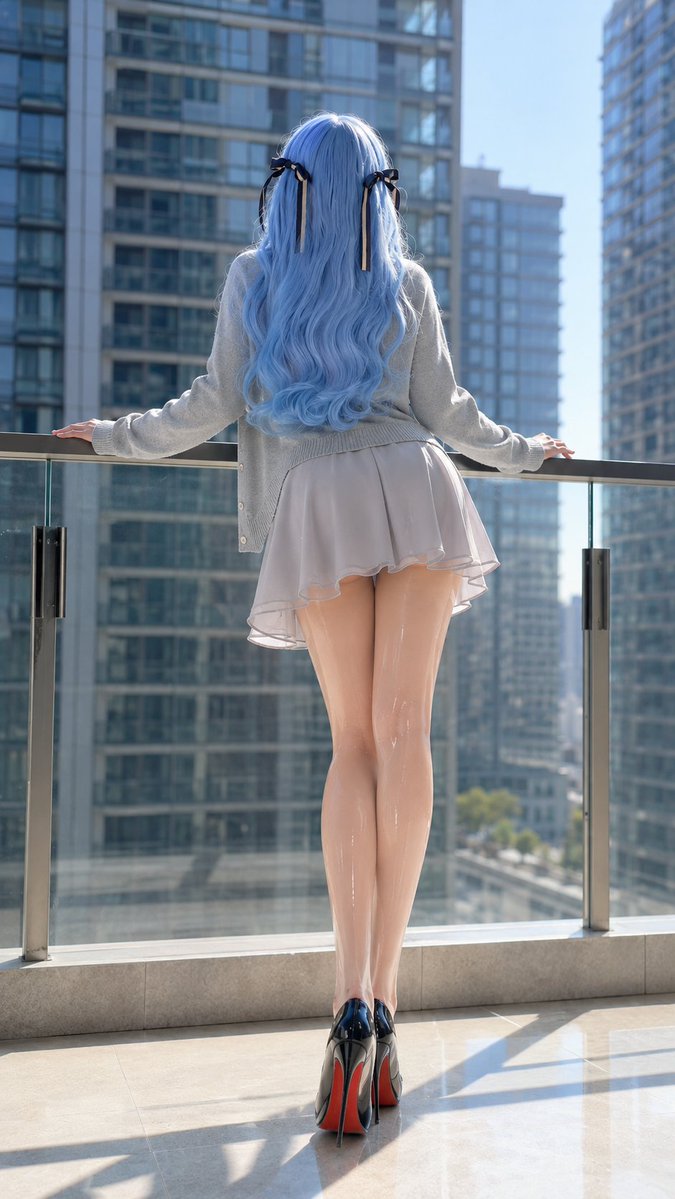
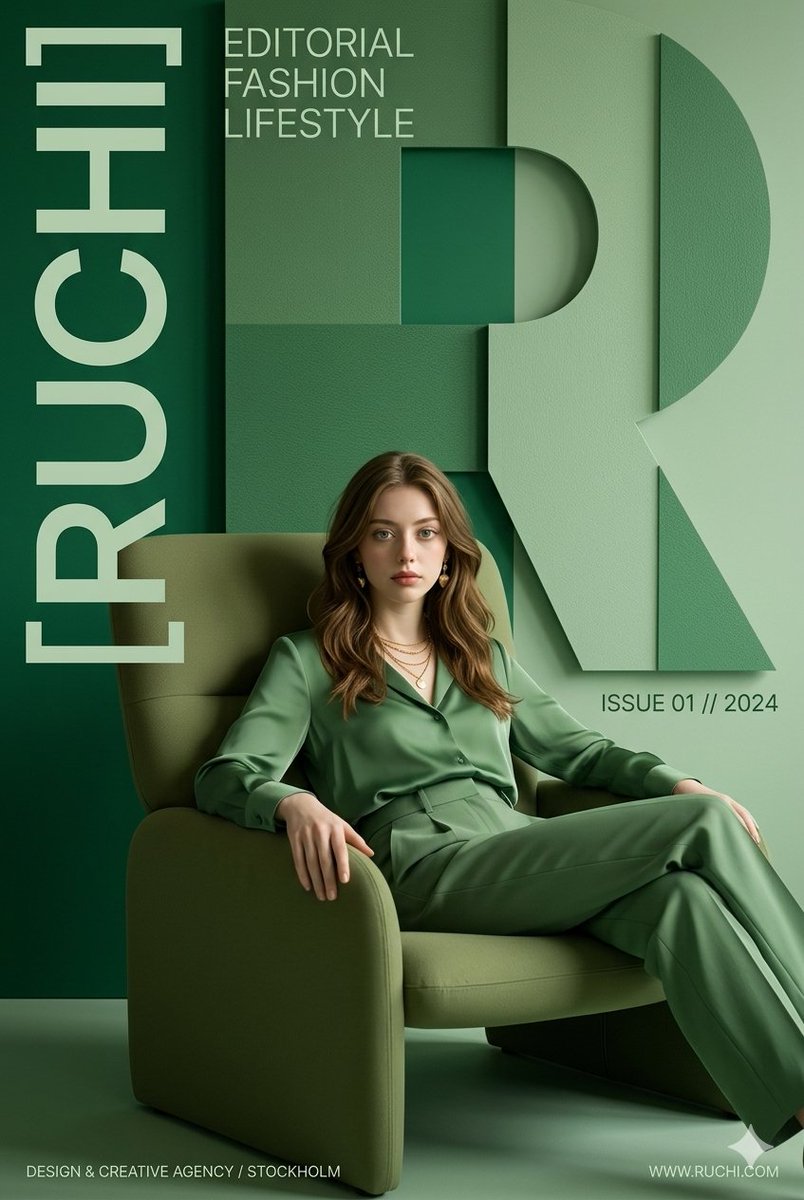
Soft editorial fantasy portrait with detailed character framing
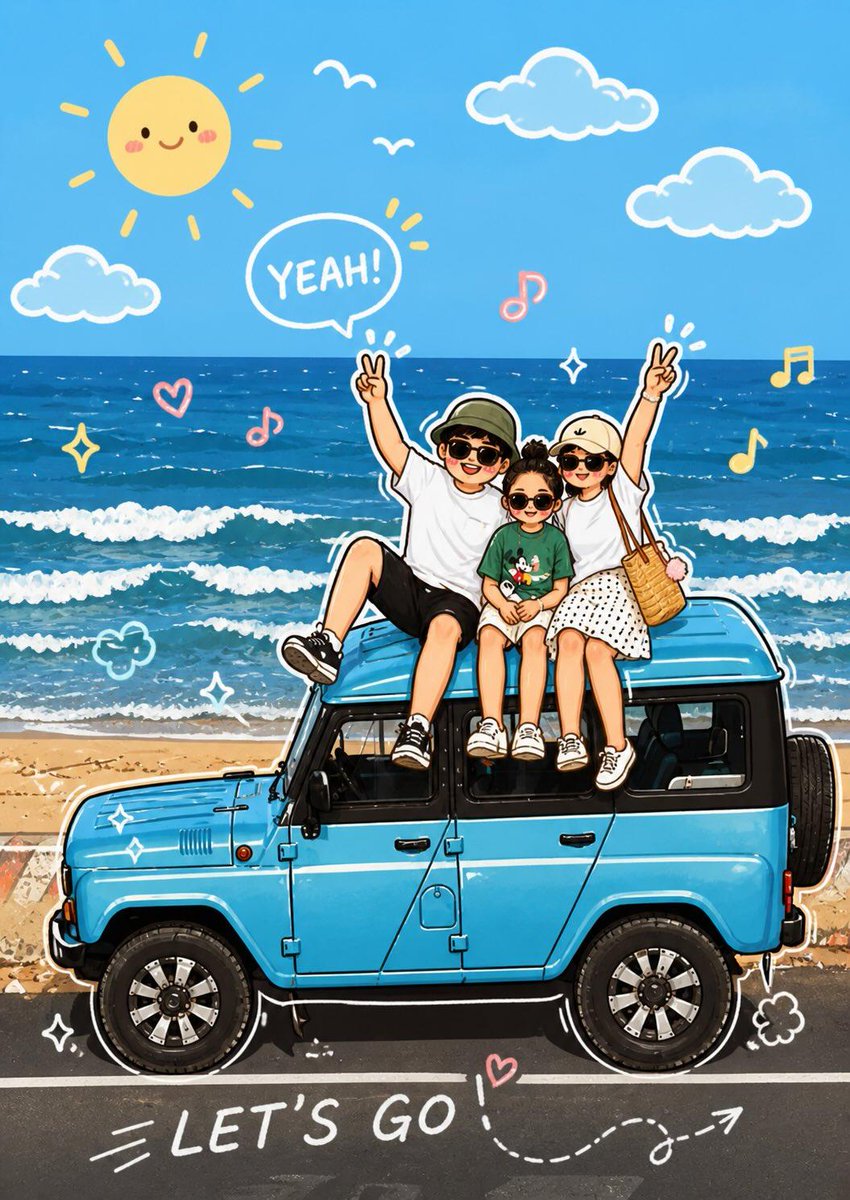
Clean black and white illustrated character from an uploaded photo
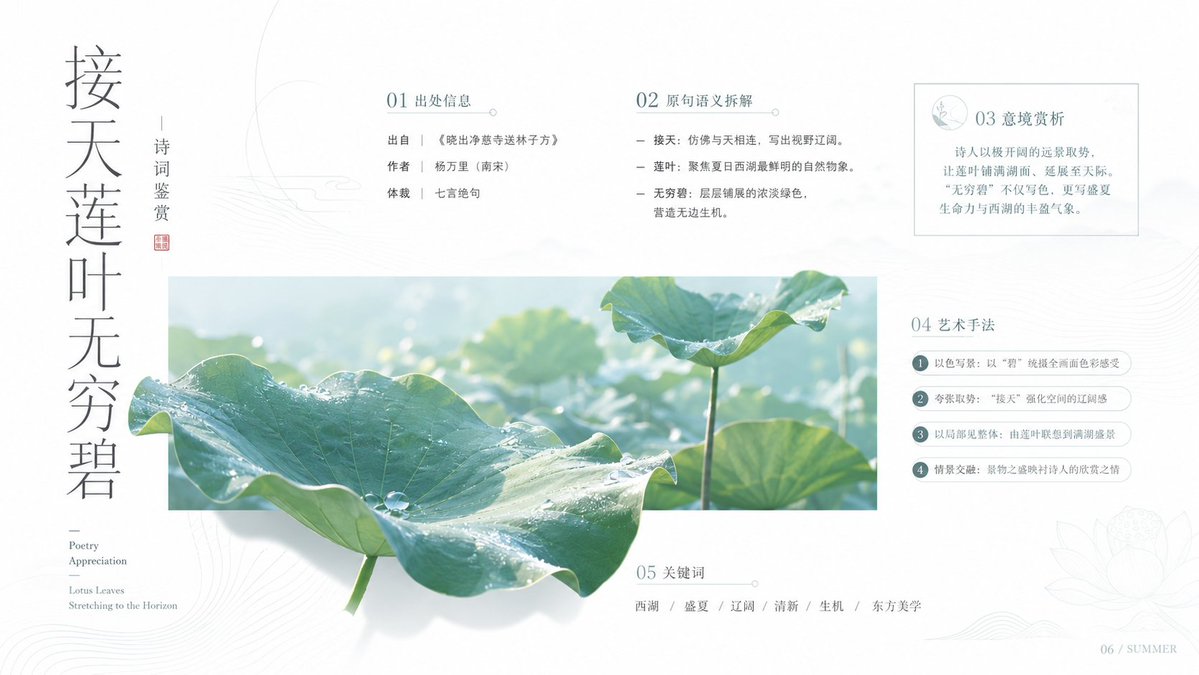
Structured logistics poster with complete vertical process design
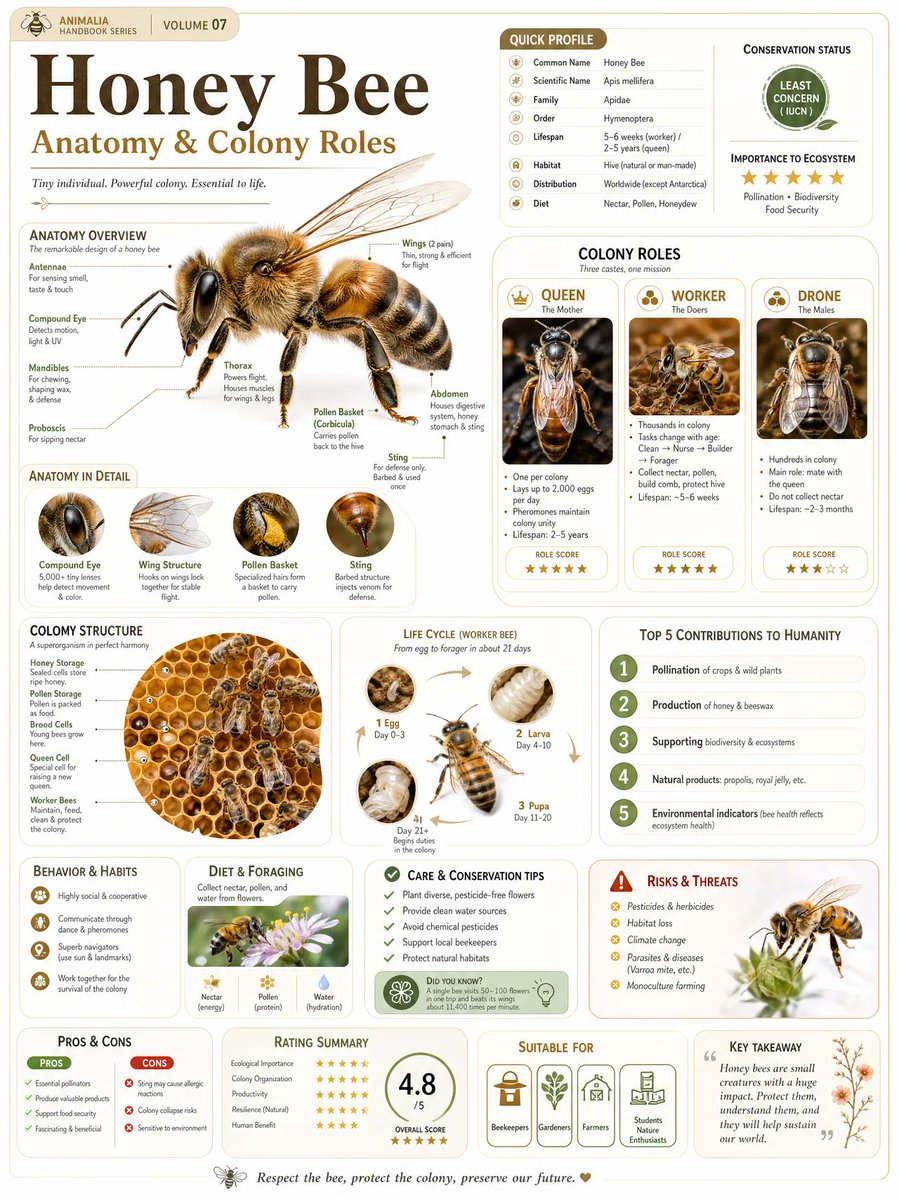
Cinematic knowledge article visualization with miniature detail
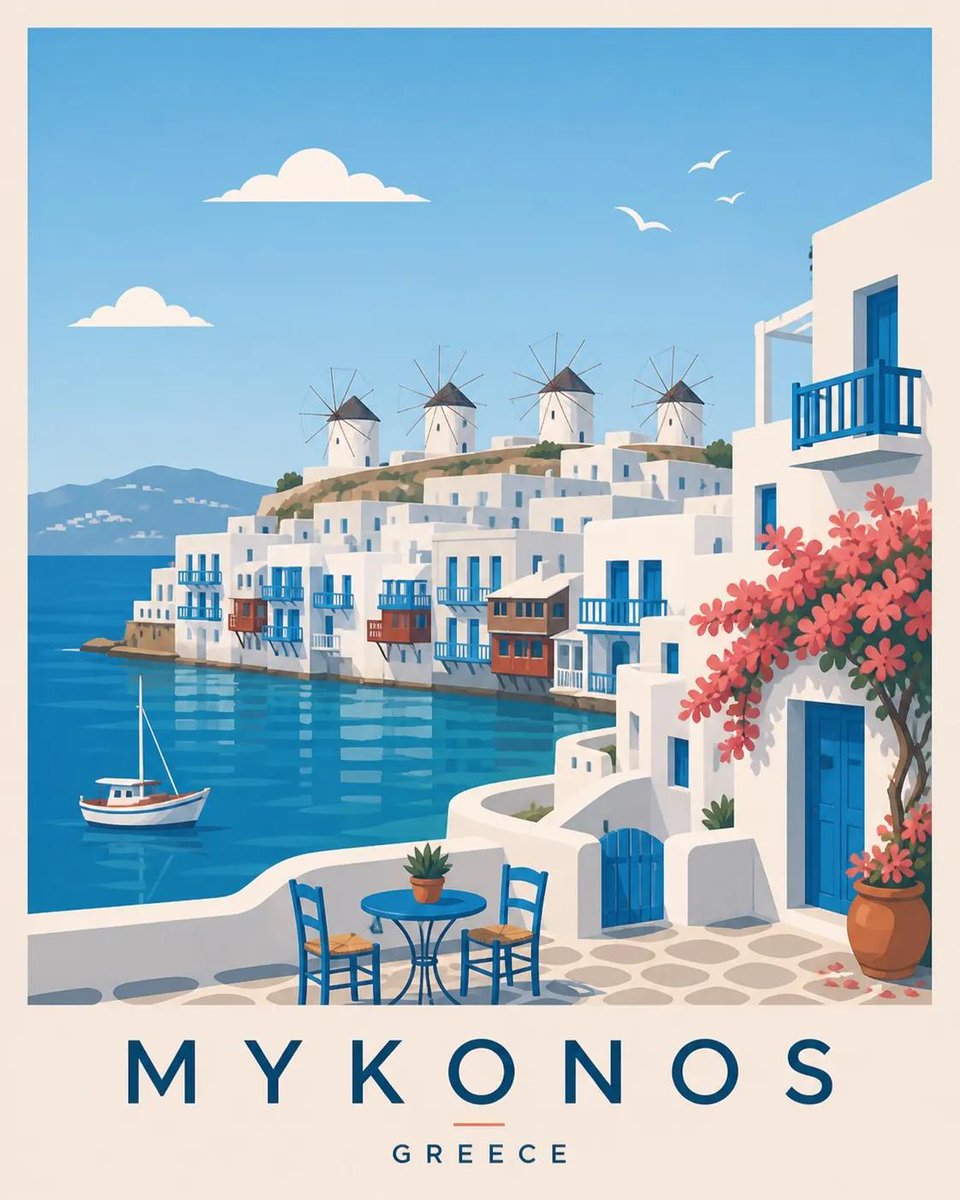
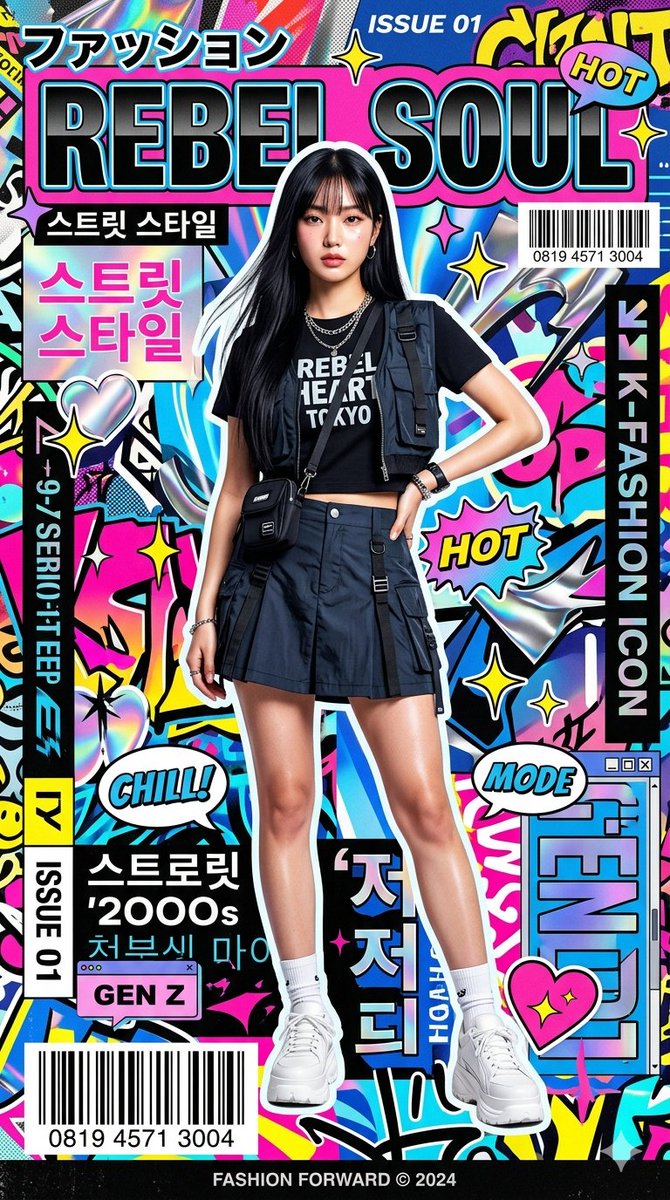
Urban typography poster with complete editorial composition
Fashion design workspace with garment sketch materials
Pastel skincare product ad with polished campaign lighting
Round wooden product podium with coastal studio light
Portrait image result selected for the Seedream example wall

Prompt patterns for Seedream

Seedream 5.0 Lite works best when the prompt separates the desired output, the visual input constraints, and the production use case. That keeps the model focused on the job instead of guessing which details matter.

Start with the final asset

Open with the concrete deliverable: a product hero image, brand poster, soft portrait, social graphic, scene redesign, outfit edit, visual explainer, or concept board. A named output gives Seedream a clear target before color, lighting, and material details are added.

Describe what should stay stable

When you upload images, list the stable parts before the creative changes. Preserve a face, product silhouette, logo position, outfit, camera angle, room layout, or interface structure, then ask for the new mood, lighting, background, or finish.

Use batches for direction finding

Seedream can return multiple options from one prompt. Use small batches to explore framing and larger batches when a campaign, poster, product set, or character variation needs several viable directions at once.

Use Seedream 5.0 Lite for controlled batches

Seedream 5.0 Lite lives on its own page because its best workflow combines visual inputs, flexible aspect ratios, 2K or 3K output, and multi-image exploration.

Seedream 5.0 Lite

7 credits

Lite

Best for visual edits, prompt-based image creation, poster layouts, product concepts, portraits, and batches where you want several polished directions from one brief.

A practical Seedream workflow

The console above keeps the workflow compact: write the job, attach images only when they clarify the result, then compare the latest outputs without cropping.

Brief

Write the production goal

Explain the subject, purpose, composition, audience, lighting, style, aspect ratio, and final use. Seedream responds better when the prompt reads like a production note rather than a loose keyword pile.

Inputs

Add images that reduce ambiguity

Use image uploads for identity, structure, product shape, pose, layout, or color direction. If an uploaded detail matters, name it in the prompt so the model treats it as a constraint.

Compare

Review the board and continue

Inspect the large preview at full ratio, scan the nine-card history grid, download the best option, or run a tighter follow-up prompt with a clearer instruction.

Tips for better Seedream prompts

Use one sentence to name the deliverable before style details. “Create a clean 3K product hero image for a mobile landing page” is easier to control than a long texture list.

If you upload an image, state what must remain intact. Preserve identity, product shape, pose, layout, or brand colors before asking for a new environment.

Use output count as an exploration tool. Generate fewer images for quick checks and more images when you need a real set of options to compare.

Seedream questions

Start creating with Seedream

Open the console above, write a production-ready brief, choose the canvas and output count, then keep the whole Seedream workflow inside Lovimg.

Back to generator