AI Tool

AI Art Generator

Create original AI art in a focused Lovimg workspace. Write a visual prompt, add reference images when a style or character should stay consistent, choose resolution and quality, then keep every finished artwork in your private generation history.

History
Text
Your GPT Image 2 results will appear here after generation.

AI art generator examples

Selected from the Lovimg Illustration & Art category and shown here as fast static examples.

The AI Art Generator uses the same GPT Image 2 workspace for text prompts, reference-guided art, polished outputs, and private creative history.

Prompt to artwork

Turn a written idea into illustration, concept art, character art, surreal scenes, posters, album covers, or stylized social visuals without leaving the AI Art Generator page.

Reference-friendly

Upload sketches, mood boards, portraits, product images, or previous generations when the AI art generator should preserve a subject, palette, layout, or character direction.

Production sizes

Choose 1K, 2K, or 4K output so quick explorations, portfolio pieces, thumbnails, and final design assets can use the right level of detail.

Private art history

Finished images remain in your Lovimg account, making it easier to compare versions, download the strongest result, and continue a visual series later.

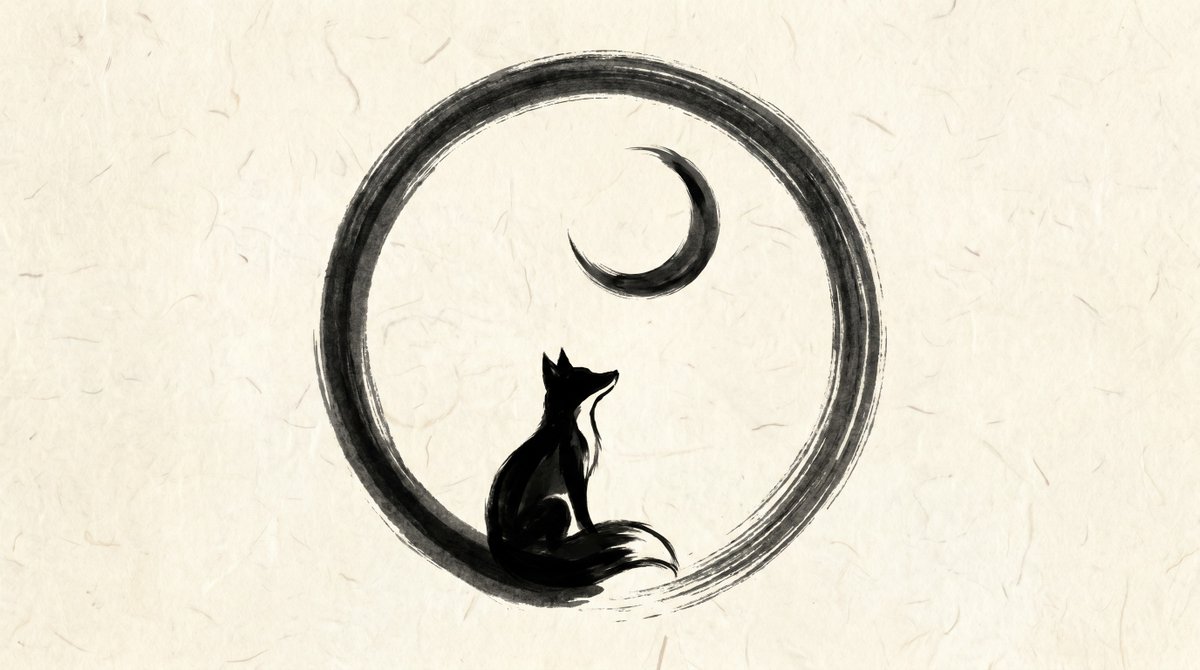
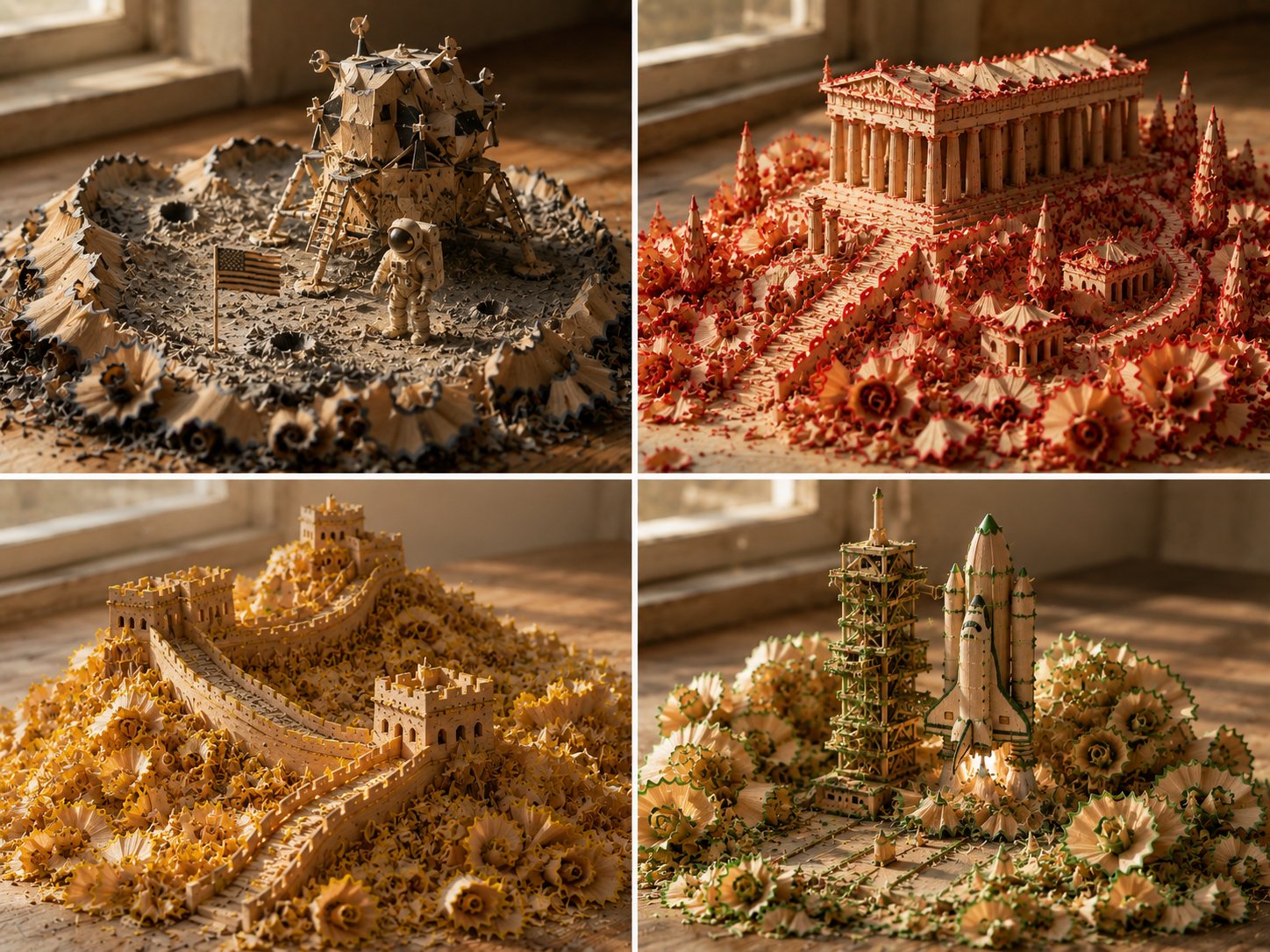
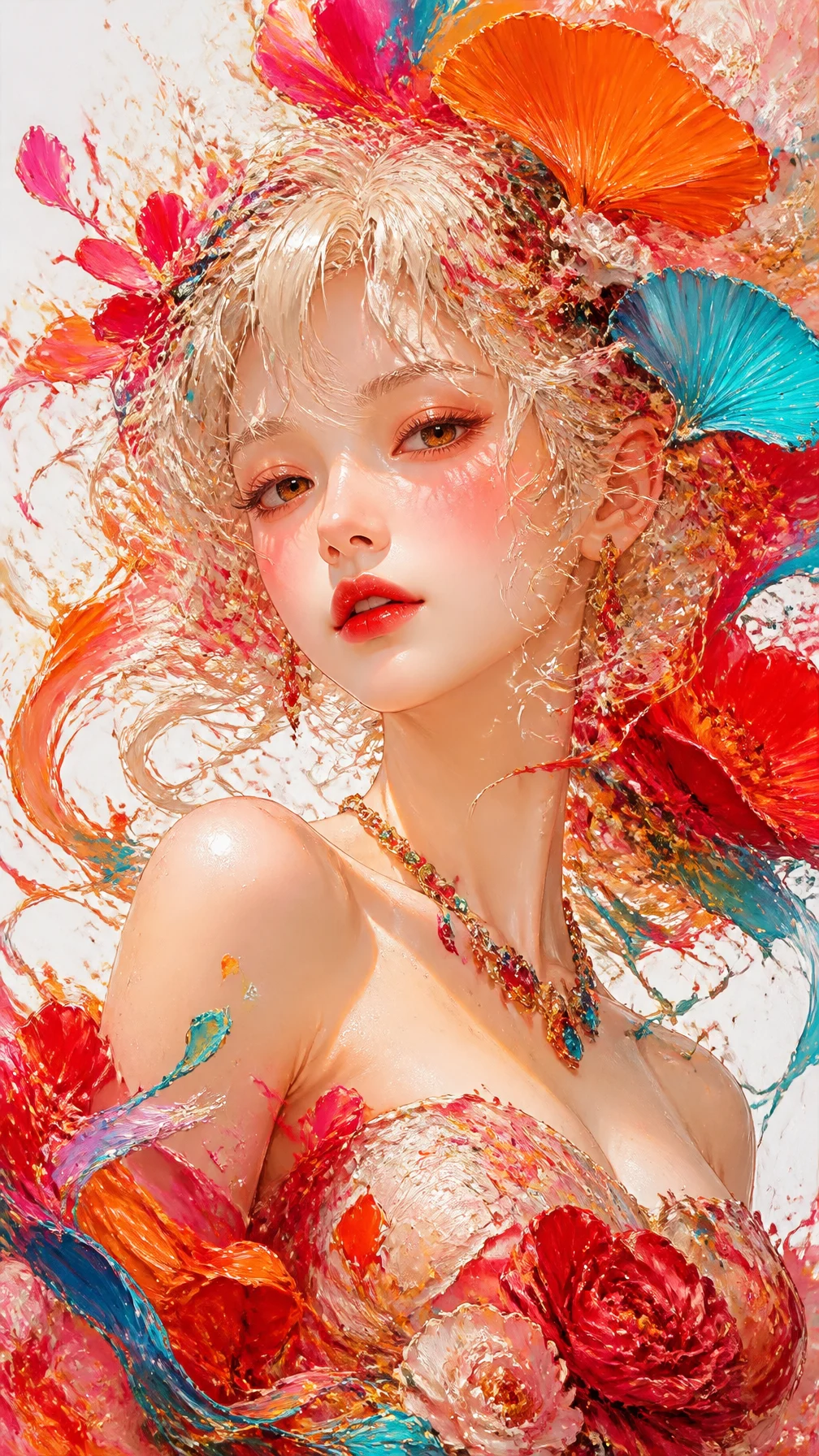
Illustration and art prompt example with expressive character styling
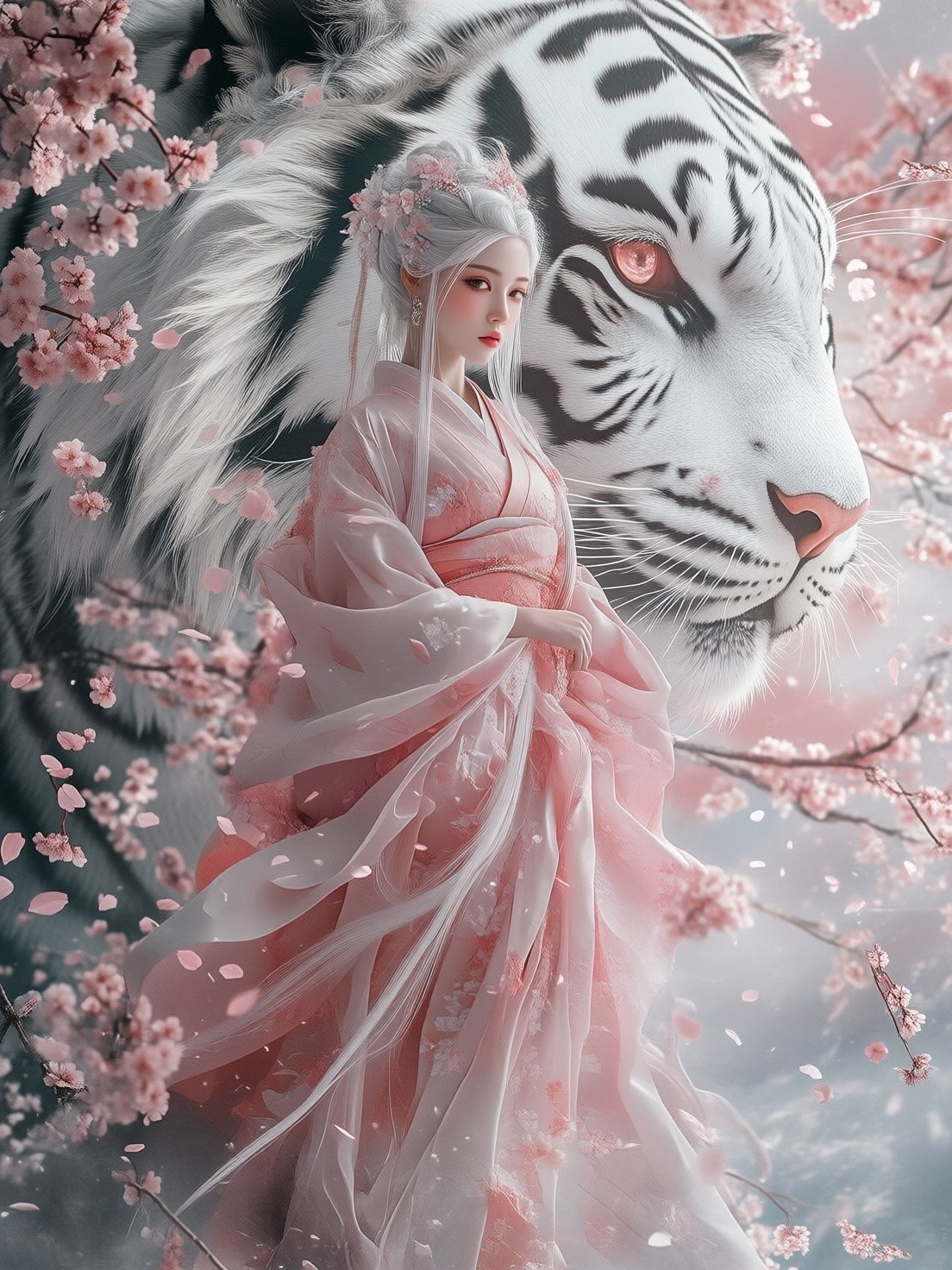
Editorial AI art portrait with traditional styling and soft atmosphere
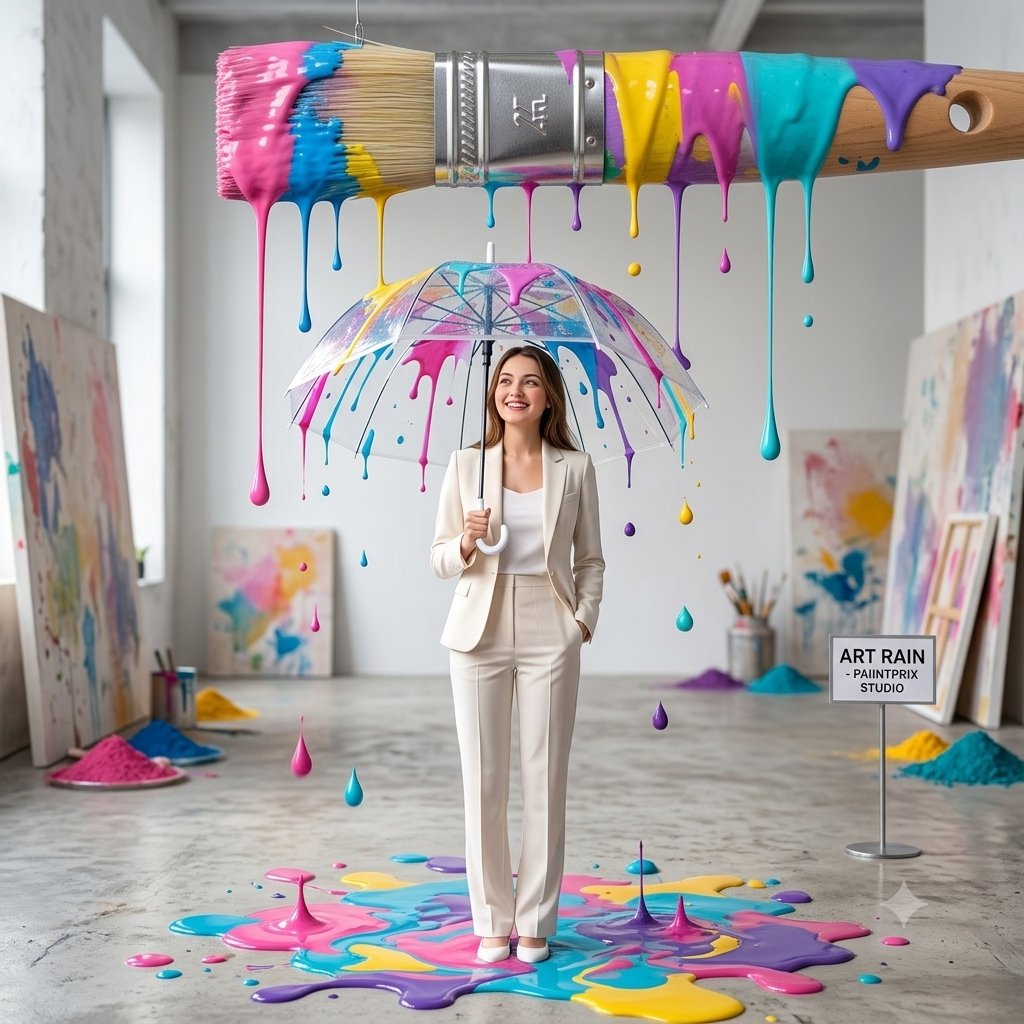
Stylized fantasy artwork selected from the Lovimg art category
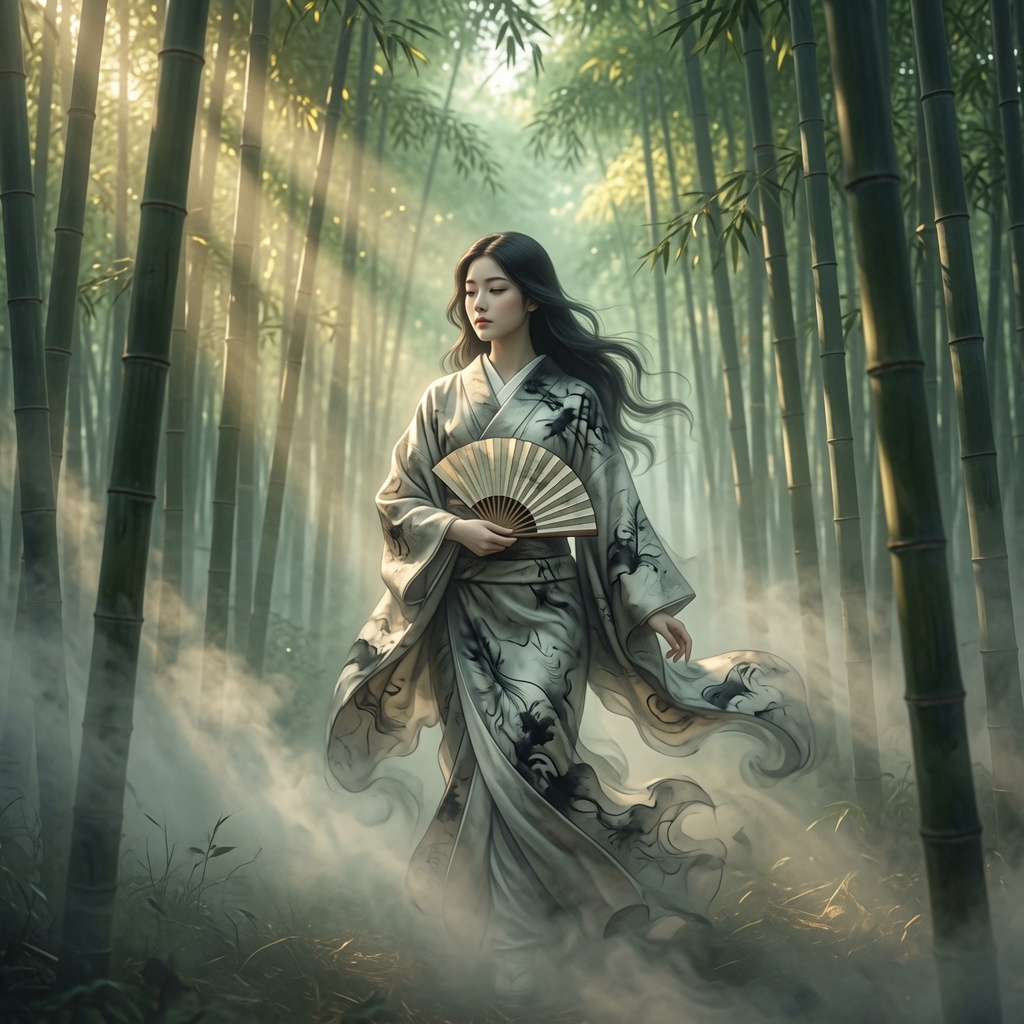
Detailed AI illustration example with cinematic composition
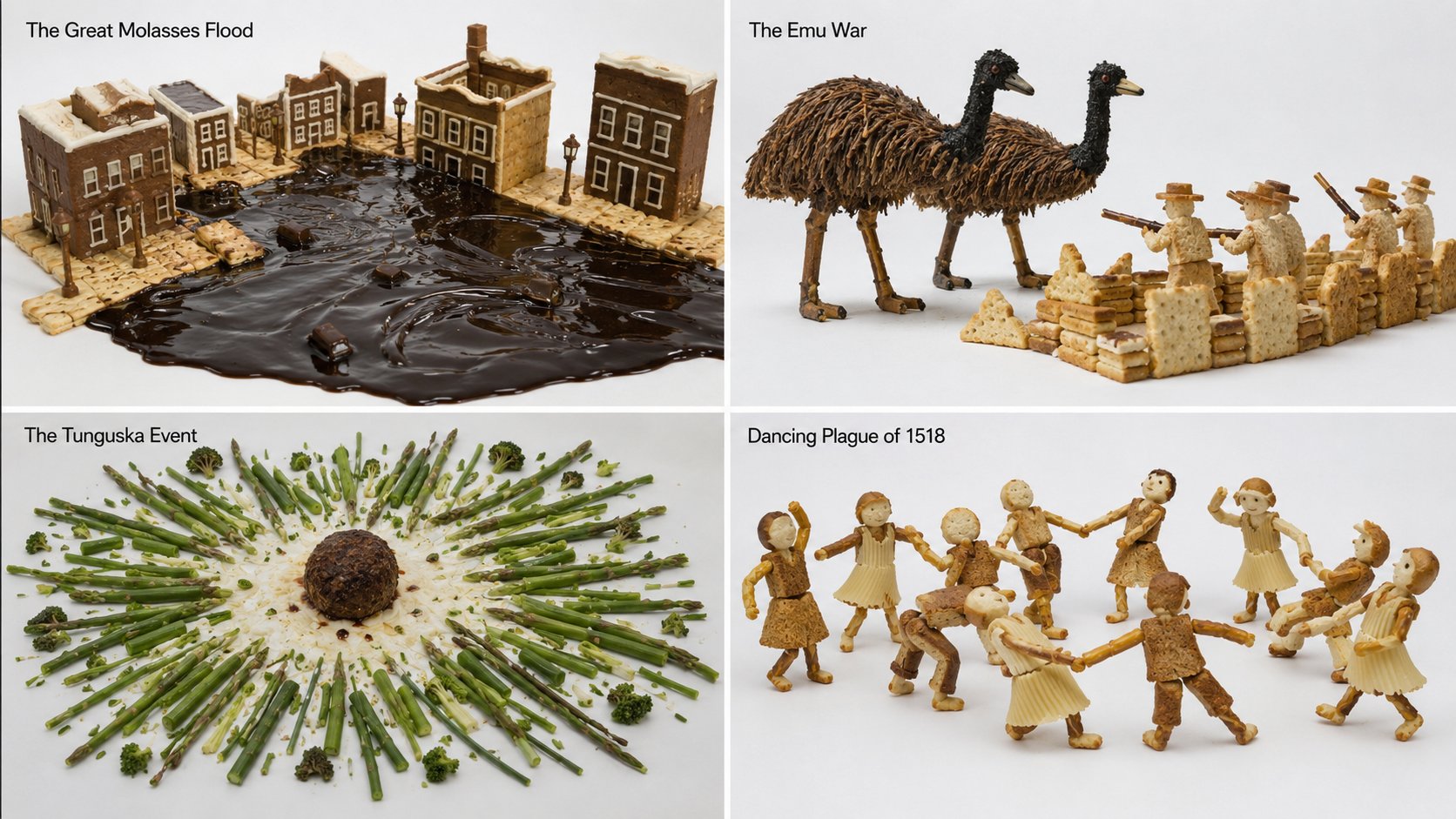
AI art generator sample with polished poster-like visual direction
Knowledge article transformed into cinematic AI artwork
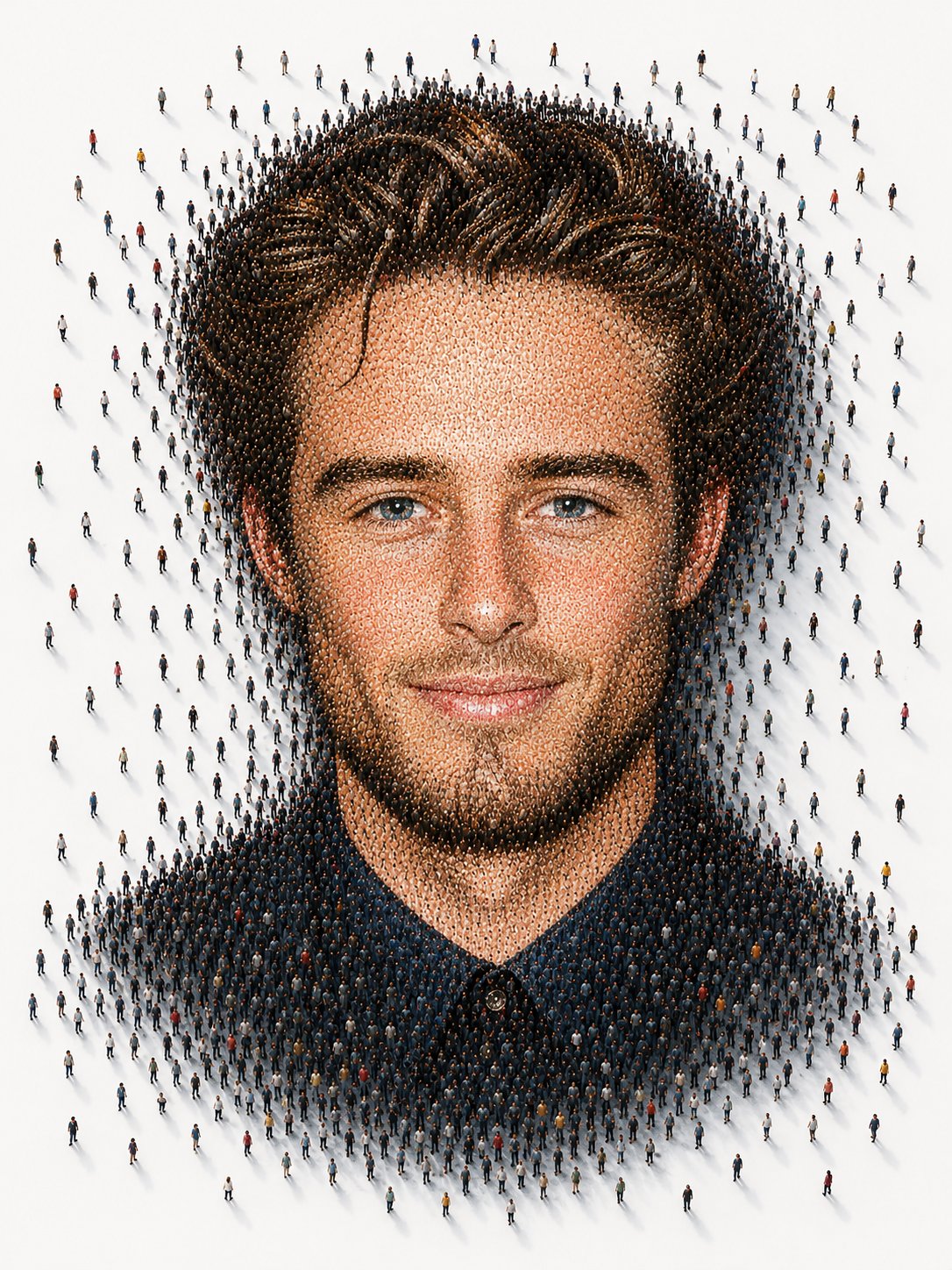
Art category example with refined atmosphere and strong framing
Community AI artwork with painterly visual treatment
Illustration category artwork used as an AI art generator example

An AI art generator for directed creativity

A useful ai art generator is not just a random style button. It should help you describe intent, protect the parts that matter, and keep the creative process readable from first sketch to final image.

Write art prompts like creative briefs

The best results come from prompts that explain the subject, medium, mood, composition, color language, lighting, and intended use. Instead of asking for a fantasy city, describe whether the artwork is a wide environment concept, a square cover image, a watercolor travel poster, a dark cinematic scene, or a clean editorial illustration. Lovimg keeps that prompt in the same workspace as your generated outputs, so each pass becomes a more useful brief for the next one.

Use references without losing control

When you already have a sketch, a character pose, a clothing direction, a color palette, or an old image that should guide the result, upload it before generating. The ai art generator can use the reference as a visual anchor while your prompt explains what should change. This is especially helpful for recurring characters, concept art variations, stylized product scenes, and mood exploration where consistency matters as much as novelty.

Move from exploration to finished assets

Creative work usually begins broad and ends narrow. Start with several low-pressure directions, compare the results, then tighten the prompt around the strongest composition, palette, and style. Once the direction is stable, raise resolution or quality for the version you actually want to publish. The AI Art Generator keeps the result board and history close to the prompt box, so visual decisions do not disappear into a download folder.

Use one studio for AI artwork

Lovimg AI Art Generator is built for people who want a direct creative surface instead of a loose gallery of settings. The workspace keeps prompt writing, reference upload, quality controls, result comparison, and private history together. That makes it useful for artists, creators, marketers, game designers, writers, and small teams who need visual options quickly but still want repeatable control.

Text-driven art direction

Prompt

Create

Use natural language to define subject, composition, artistic medium, mood, color palette, and delivery format. The ai art generator can create a first concept, a final social image, or a visual style test from the same prompt field.

Reference-guided art iteration

Images

Guide

Add reference images when a character, scene, material, or brand shape should stay recognizable. The result remains an AI-generated artwork, but the direction is anchored by the visual material you provide.

How to create AI art with Lovimg

Use the first screen as the actual studio. The sections below explain the simple workflow behind better AI artwork.

Compose

Describe the artwork goal

Start with the final artifact: a character portrait, storybook spread, concept environment, surreal collage, sticker sheet, poster, or gallery-style illustration. Then add subject, medium, style, framing, light, and mood.

Guide

Add references when they help

A reference image is useful when the ai art generator needs to preserve identity, pose, layout, product shape, texture, or palette. If the prompt alone is enough, keep the workspace text-only and move faster.

Refine

Compare and continue

Open the latest result, compare it with recent history, download the best image, or reuse it as a reference for another pass. Iteration stays visible instead of becoming scattered experiments.

Tips for stronger AI art prompts

Name the art form before the style. Children book illustration, character concept sheet, surreal gallery poster, or ink landscape gives the AI Art Generator a clearer structure than a generic style phrase.

Separate stable requirements from creative freedom. Tell the model what must stay fixed, then describe where it may explore texture, background, brush language, color, lighting, or symbolic details.

Iterate with intent. Save a strong result, reuse it as a reference, and ask for a narrower change such as stronger rim light, a calmer palette, more negative space, or a different camera angle.

AI Art Generator FAQ

Start creating AI art

Return to the workspace, write a focused art brief, add references if needed, and let Lovimg AI Art Generator turn the direction into visual options you can keep refining.

Back to generator