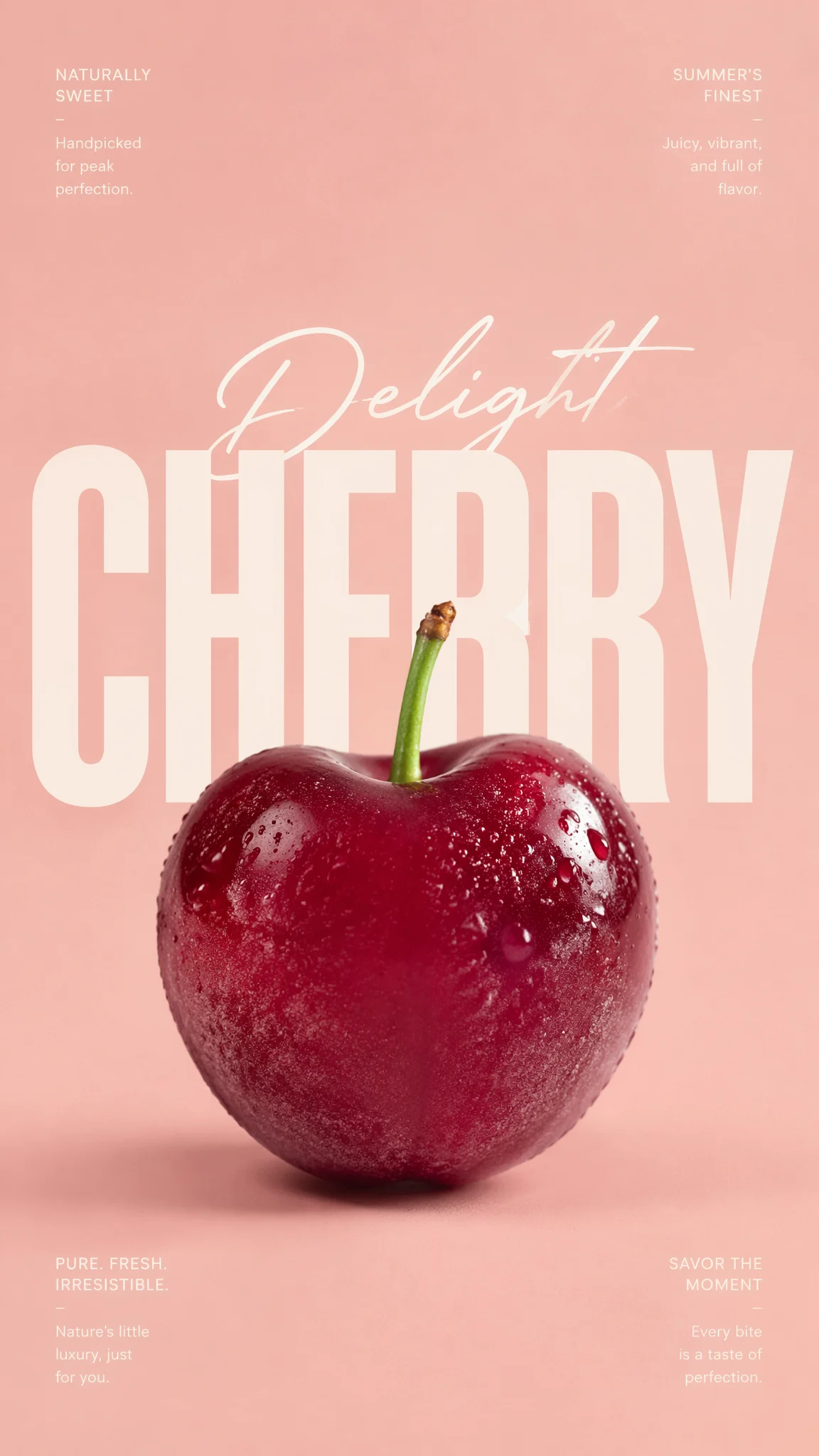
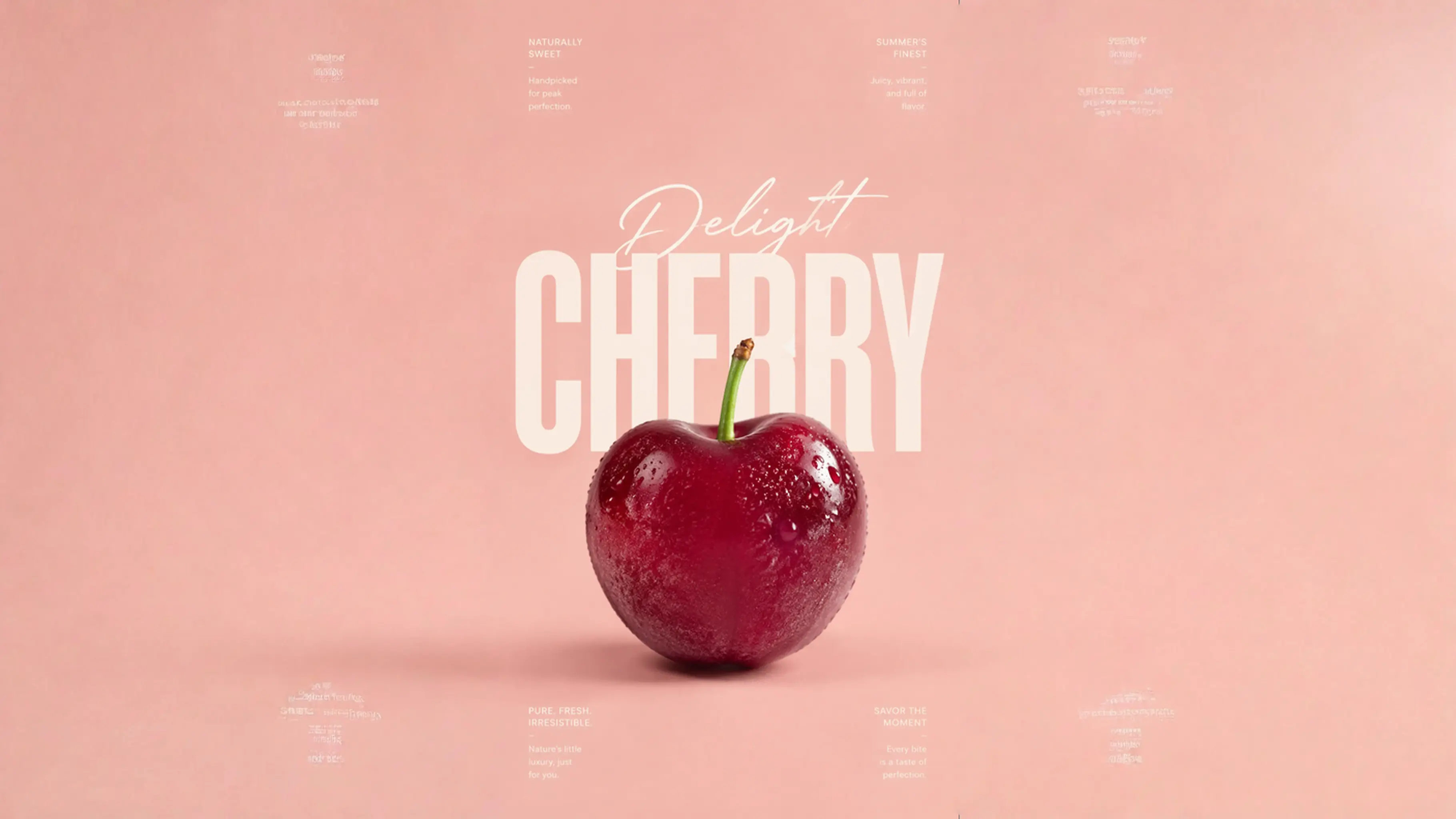
Make a narrow crop feel complete
Extend the surrounding scene so a close crop has enough space for a banner, cover, or wide creative layout.
Upload one image, choose an aspect ratio or custom canvas, and let Lovimg extend the scene around the original crop.
Preview first, then expand the canvas.
Expansion mode
Aspect ratio
Estimated cost
5 credits per generated image.
Choose an image, then extend it.
Guide the expansion, exclude unwanted details, set a seed, and control alpha or moderation behavior.
Preserve alpha
Keep transparent areas when the source image includes an alpha channel.
Prompt content moderation
Check written guidance before it is used for expansion.
Visual input content moderation
Check the uploaded source image before generation starts.
Visual output content moderation
Check the generated image before returning the result.
Your extended image will appear here.
Upload an image, choose a canvas, then generate.
AI image extender for real layout work
AI Image Extender turns a tight crop into a wider canvas without asking you to rebuild the entire picture from scratch. That matters because most image problems are not creative failures; they are format failures. A portrait is strong, but it is too narrow for a hero banner. A product photo has the right lighting, but the marketplace card needs more side space. A travel image works beautifully in a square post, but the blog header needs 16:9. Cropping removes information, stretching damages the subject, and starting over can change the visual direction that was already approved. Lovimg keeps the task focused: upload the source, pick the target aspect ratio or custom canvas, then generate the missing surroundings around the original image.
The workspace is built for people who need an image to fit a layout, not for people who want a complicated editor. The left side holds the upload, expansion mode, visible credit cost, and settings. The right side shows the result as soon as the task finishes. Aspect ratio mode covers common outputs such as square, portrait, landscape, and vertical social formats. Custom canvas mode is available when the final frame has exact width, height, and placement requirements. Additional parameters stay inside Settings, where you can guide the expansion with a prompt, add a negative prompt, set a seed, preserve alpha, or keep content checks enabled. The common path stays simple, while precise production work still has room to be controlled.
Before and after
These fixed examples show the same practical move: the original image stays recognizable while the missing background is generated around it.
Extend the surrounding scene so a close crop has enough space for a banner, cover, or wide creative layout.
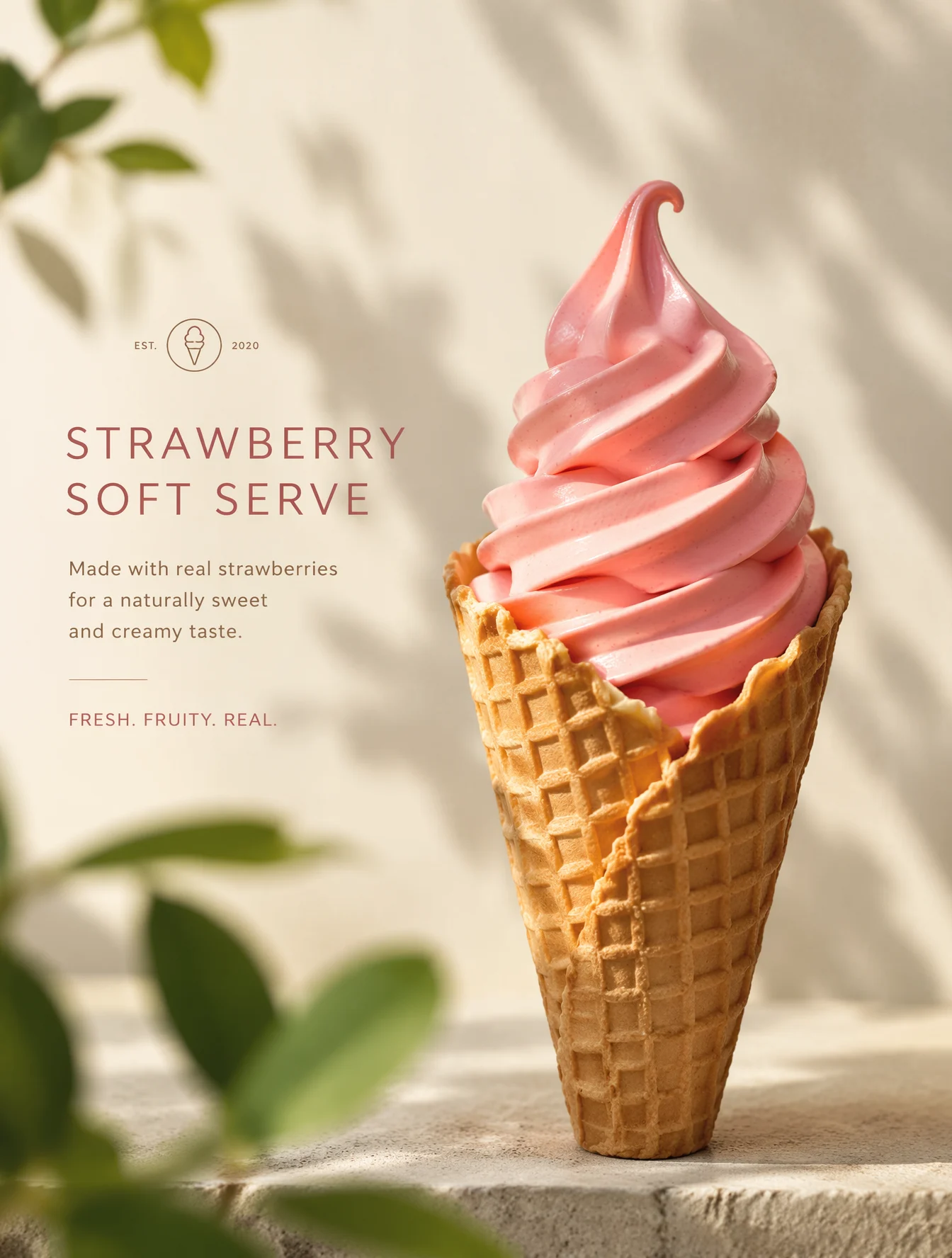
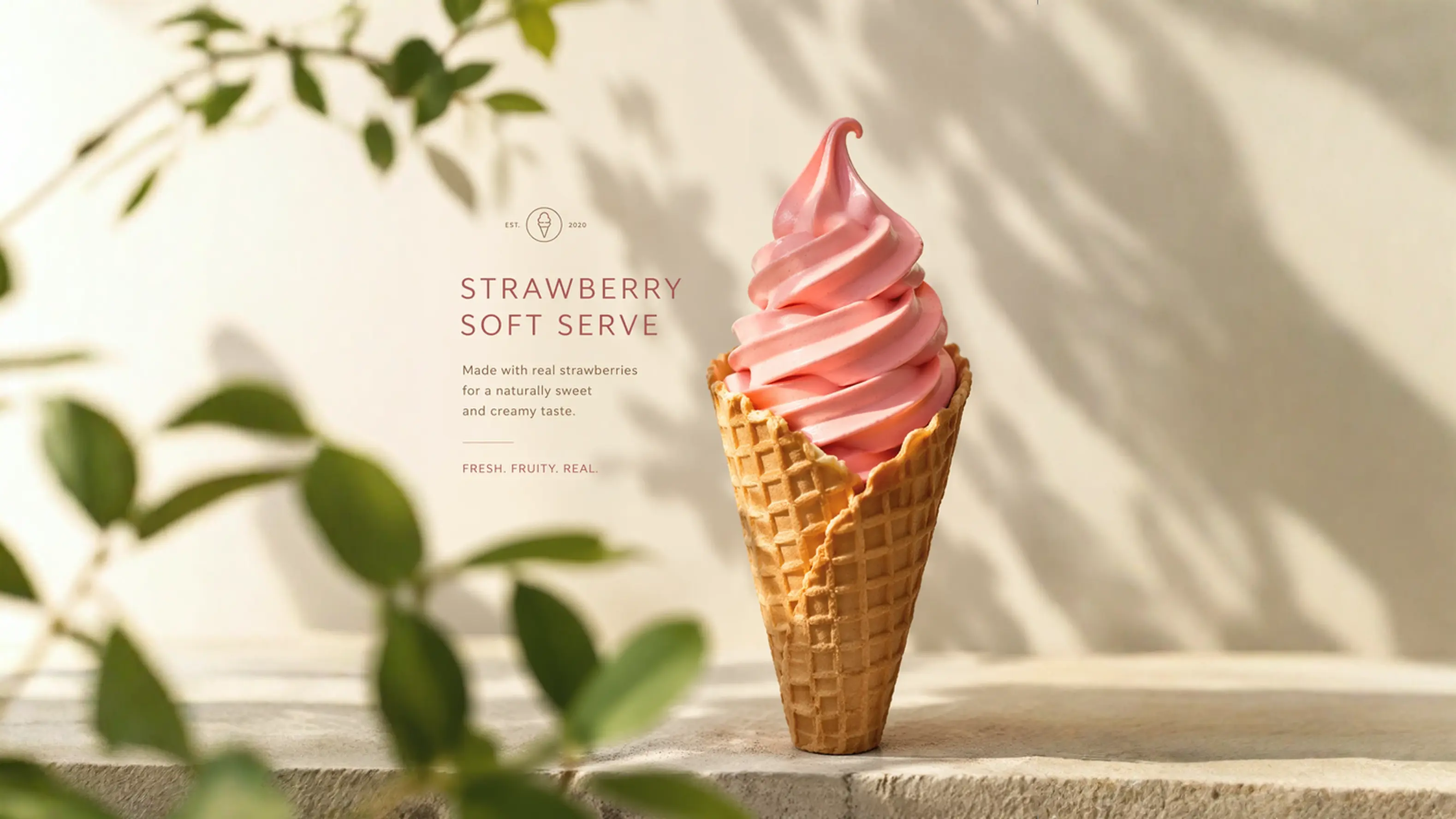
Change the composition for social posts, ads, stores, or presentations without scaling the subject out of proportion.
Core workflow
Image expansion is a layout repair step. The interface should expose canvas intent, optional guidance, visible cost, and saved results instead of forcing a full image generator workflow.
Choose 1:1, 4:5, 9:16, 16:9, or another common ratio when the goal is to repurpose one image for a different surface. The original image remains the anchor while Lovimg generates the missing edges.
When a design has exact geometry, switch to custom canvas. Set the output canvas size, original image size, and original image location so the source can sit precisely inside the new frame.
Most images can be expanded naturally without a long prompt. When the edge should continue a specific mood, season, room, landscape, surface, or brand style, add a short prompt and optional negative prompt.
Every completed extension is archived through the same Lovimg generation history used by other image tools. You can download immediately, compare versions, or return later without losing the result.
How it works
A good uncrop image flow should feel like preparing a file for its next destination. The subject is already there; the tool expands the space around it.
Drop a PNG, JPG, or WebP into the upload area. The preview appears before credits are used, so you can confirm the correct crop, subject, and file quality.
Use aspect ratio mode for common publishing formats. Use custom canvas when a layout needs exact output dimensions and a precise original image position.
Lovimg creates the async task, follows progress, archives the finished image, and displays the result on the same page with download and history actions.
Use cases
Image extension earns its place when the image is already right but the frame is wrong. The best result preserves the approved subject and adds believable room around it.
Turn one approved creative into vertical posts, square cards, wide banners, and paid social variants without distorting the main subject or rebuilding the concept.
Add space around packaging, objects, food, fashion items, or catalog shots so the image fits store cards, hero sections, comparison grids, and marketplace crops.
Extend headshots, creator portraits, speaker images, and team photos when a page, slide, or profile header needs more background around the person.
Uncrop strong generated images for wallpapers, posters, decks, galleries, prompt examples, and follow-up edits while keeping the original visual direction intact.
FAQ
An AI image extender enlarges the canvas and generates new visual content around the original image. It is also called image uncrop, image outpainting, or image expansion.
Use aspect ratio mode when you simply need a common format such as 1:1, 4:5, 9:16, or 16:9. It is the fastest path for social, ecommerce, ad, and presentation crops.
Use custom canvas when a layout has exact geometry. You can define the final canvas size, original image size, and where the original image should sit inside the expanded frame.
No. The tool can expand from the uploaded image alone. A short prompt helps when you want the new area to follow a specific background, season, lighting style, room, surface, or campaign mood.
Yes. The finished image is saved through Lovimg generation history, so you can download it right away or return later to reuse the extended result.
Uncrop without rebuilding
Drop a portrait, product photo, travel crop, AI draft, or campaign visual. Lovimg expands the canvas, archives the finished file, and keeps it ready to download later.