GPT Image 2.5

GPT Image 2.5 AI Image Generator

Bring a product idea, portrait, or campaign brief into one image workspace. Choose GPT Image 2.5 Flare or Sunburst, describe your scene, add references, and refine the result with familiar image controls.

History
Text
Your finished images will appear here.

Explore different styles from our Featured collection

A fresh selection of product visuals, travel posters, anime, architecture, food, landscapes, illustration, vehicles, and infographics from Lovimg’s Featured collection.

Turn a visual brief into a repeatable workflow: set the subject, composition, lighting, and details to preserve, then compare your images before choosing a final direction.

Text and image inputs

Start from a written brief or bring your own reference images.

Two model choices

Select Flare or Sunburst from the same model menu.

Familiar image settings

Adjust aspect ratio, resolution, quality, background, and image count.

Your private history

Review completed images, download a favorite, or share a result.

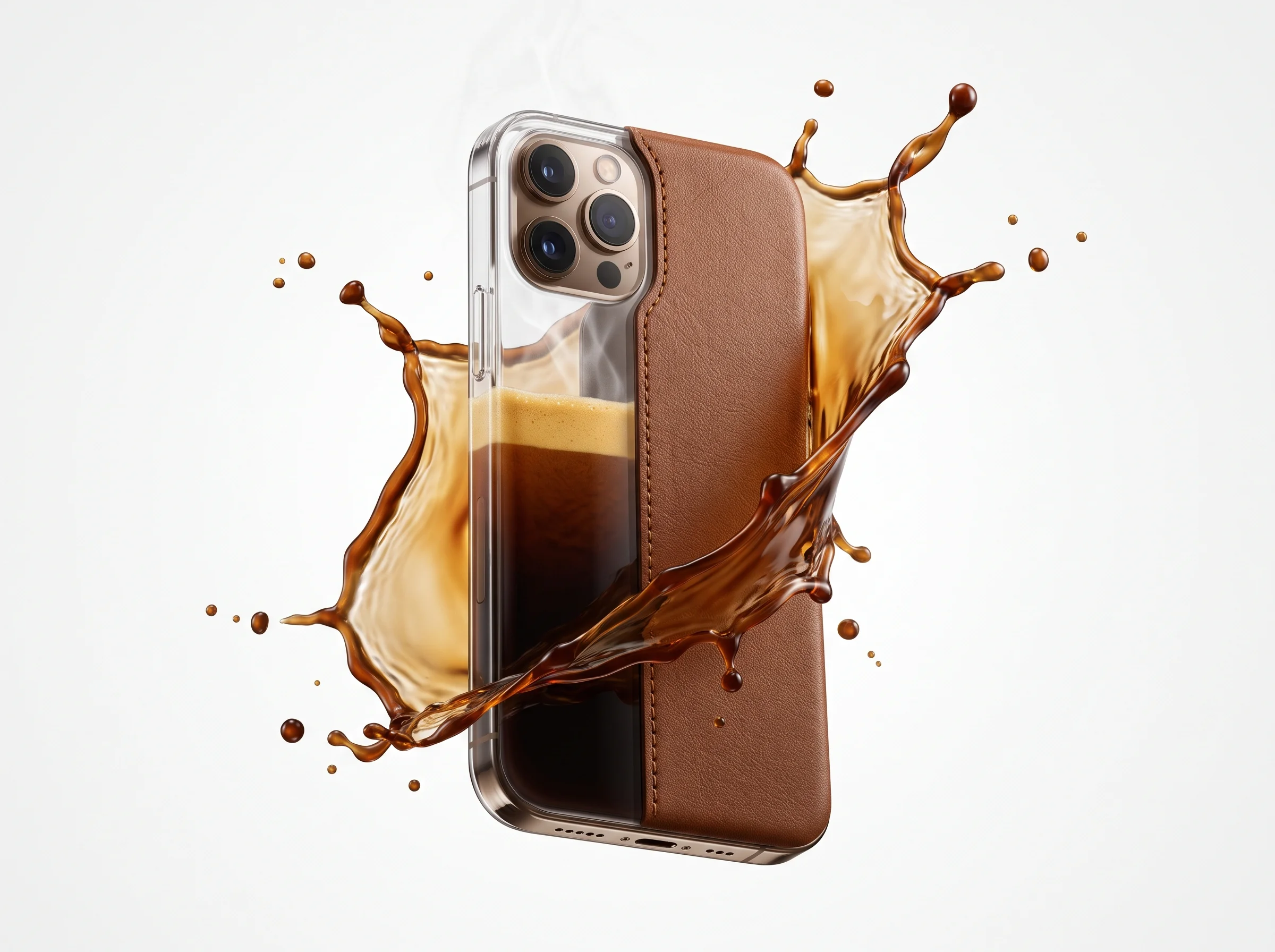
Smartphone surrounded by a splash of coffee on a white background
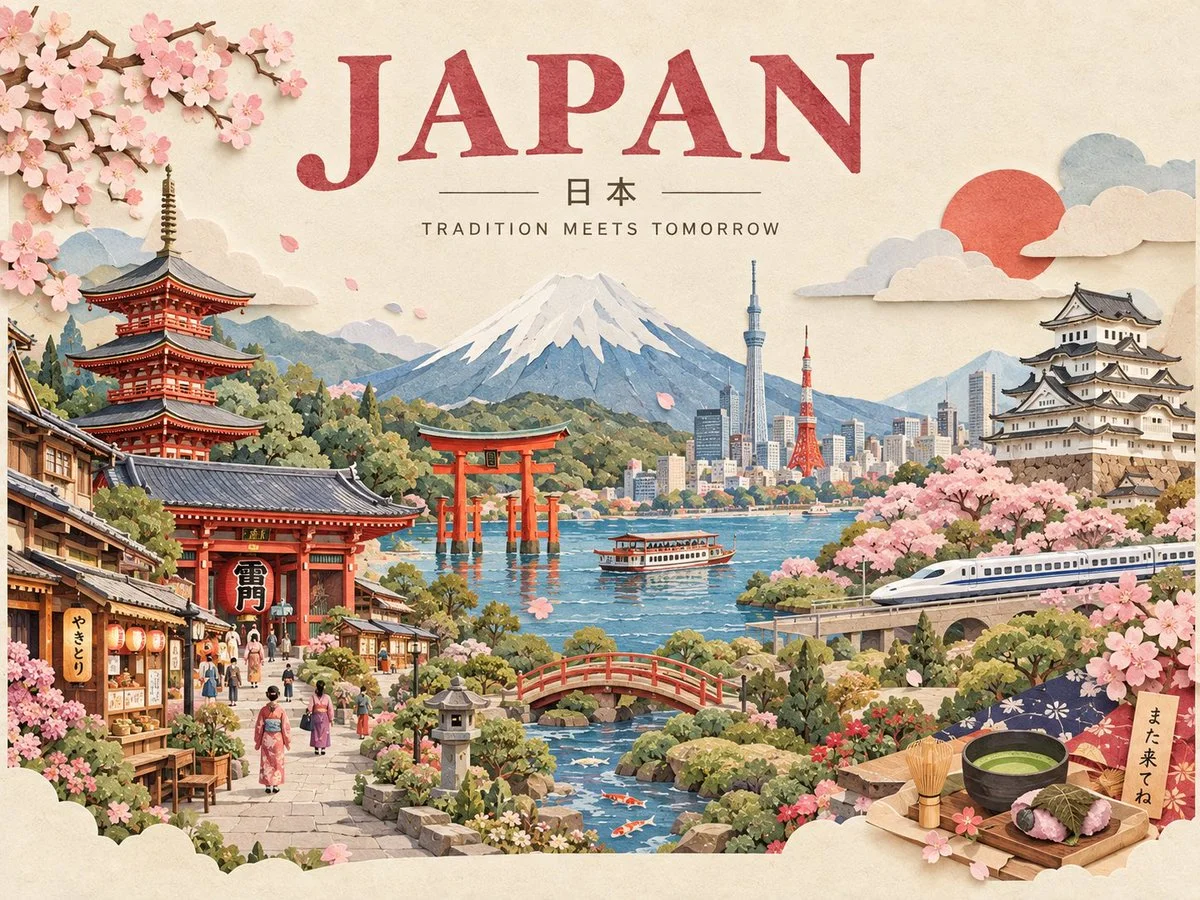
Paper-cut travel poster with Mount Fuji, a pagoda, and Japanese city scenes
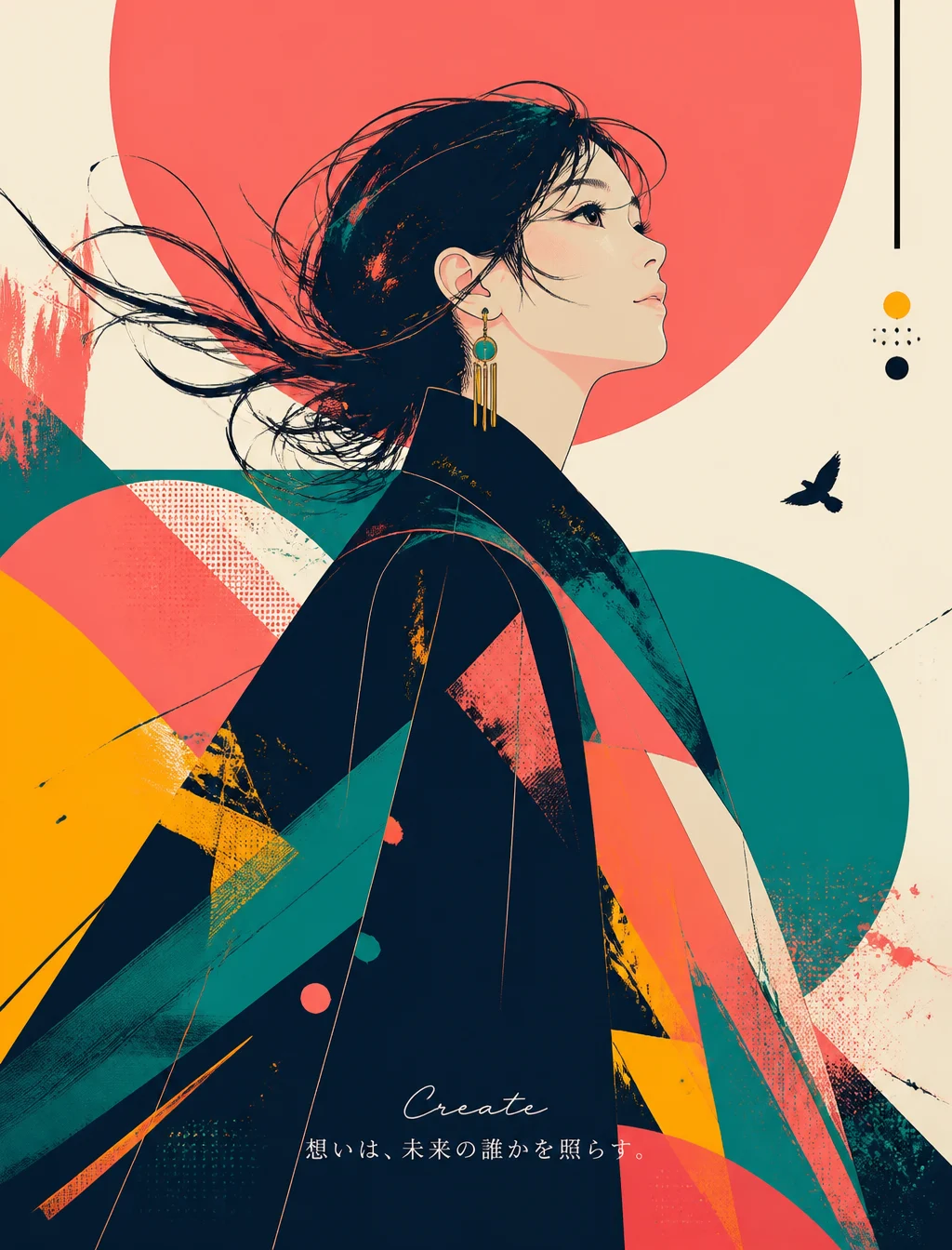
Anime-style profile portrait with a kimono and bold red and teal shapes
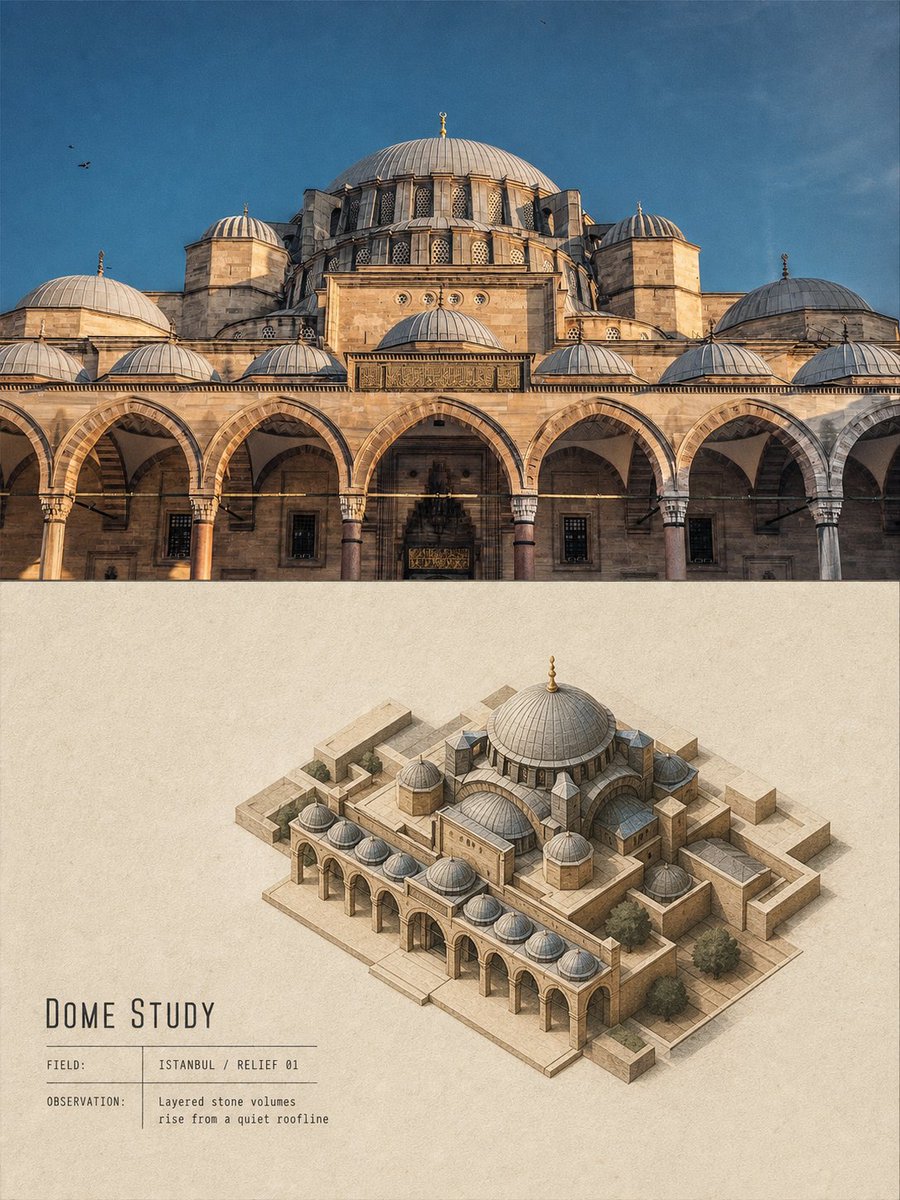
Domed mosque photograph paired with an isometric architectural model
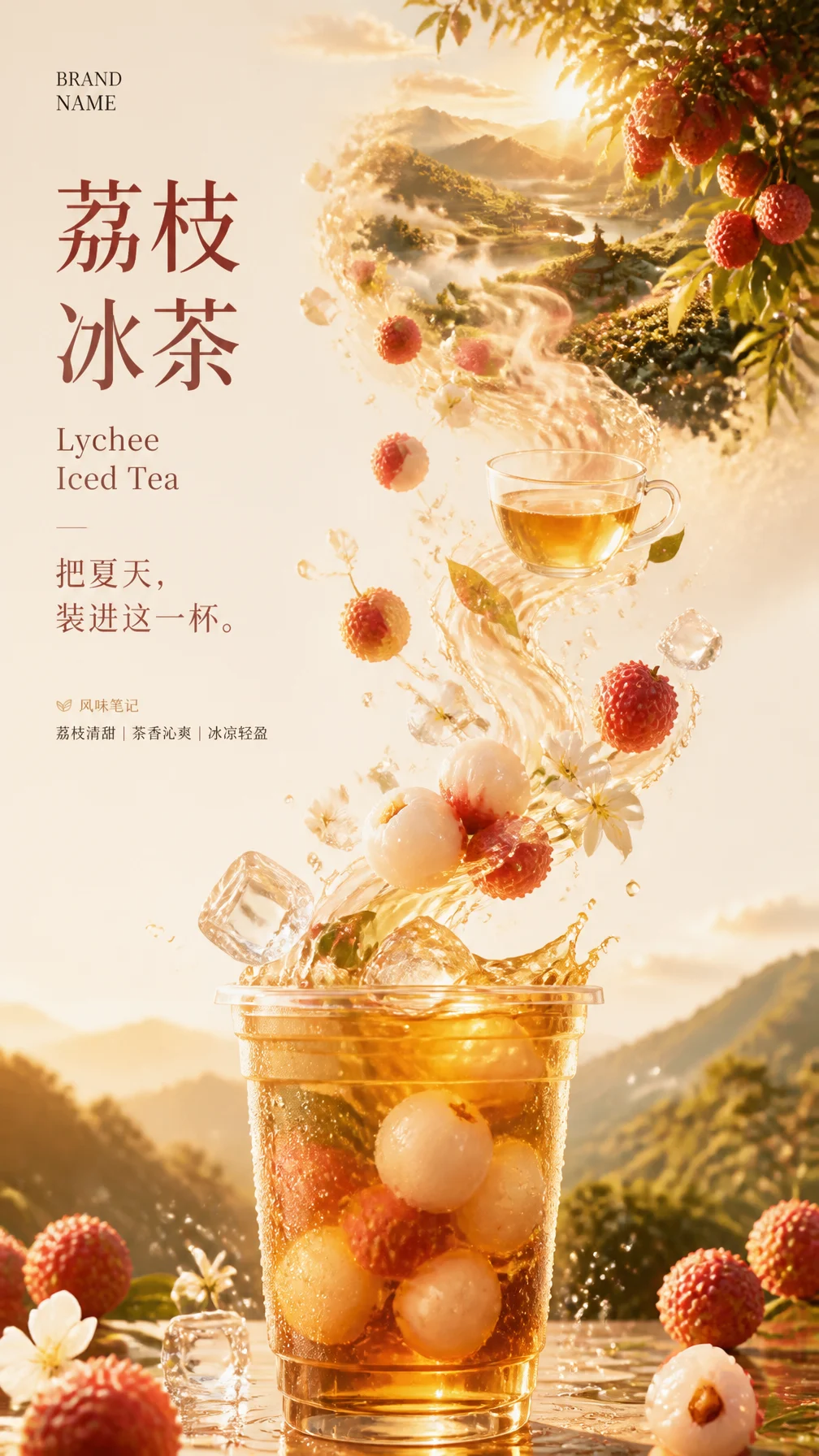
Lychee iced tea advertisement with fruit and ice floating above a glass
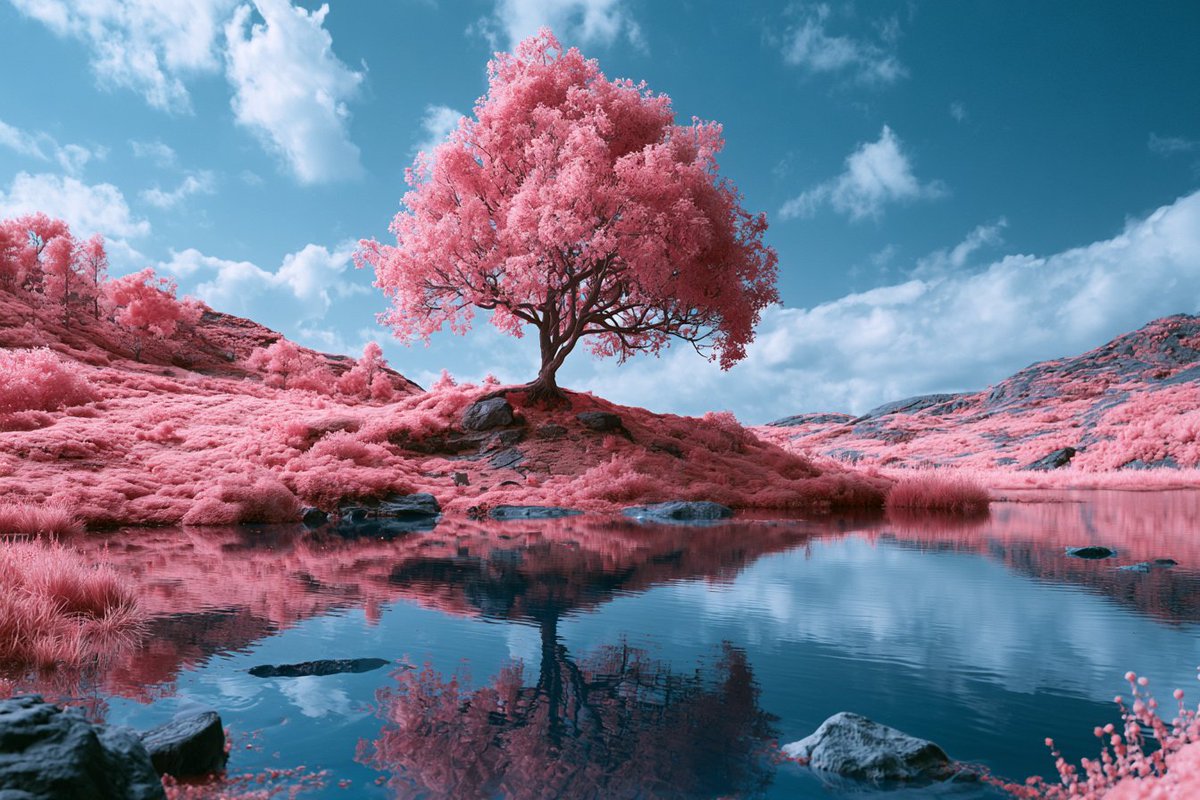
Pink tree and mountains reflected in a blue lake
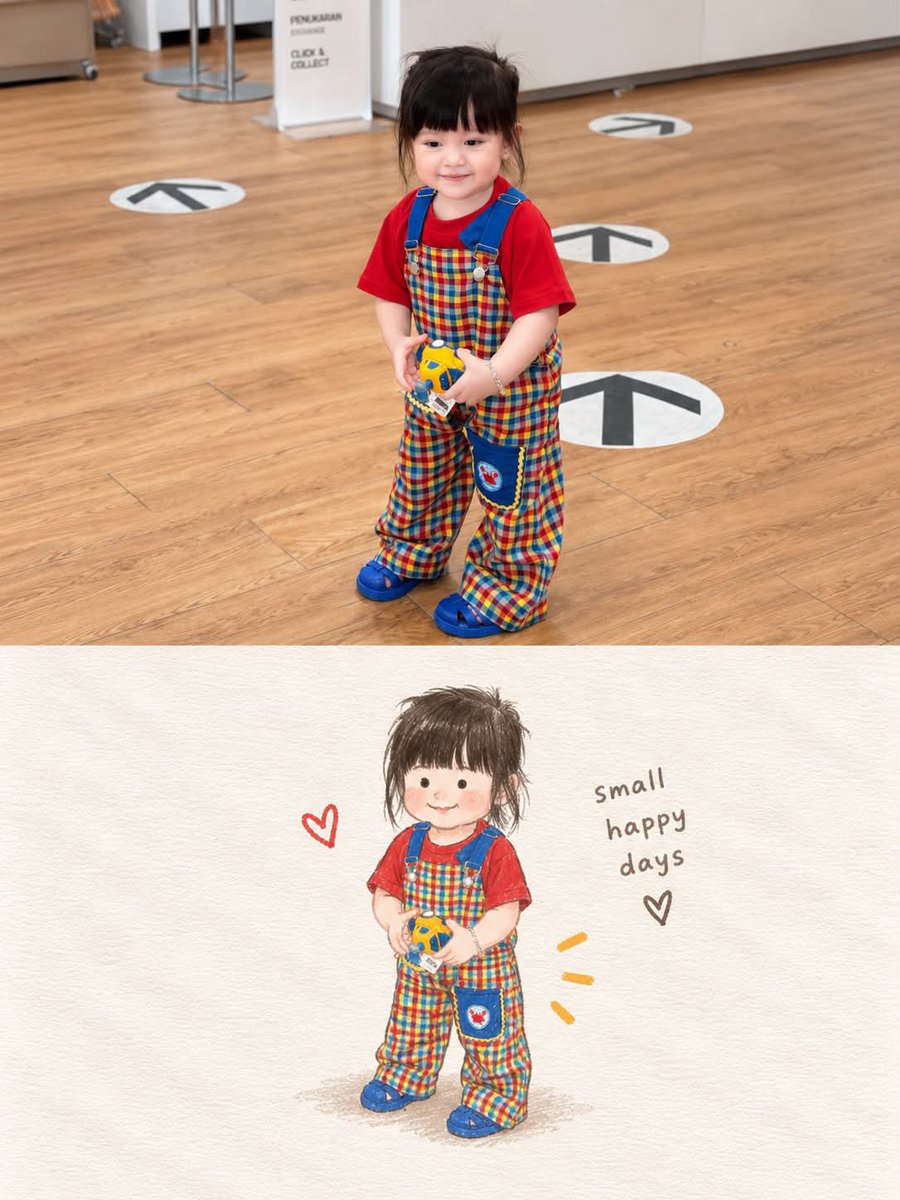
Child in a red shirt shown as a photograph and a colored-pencil illustration
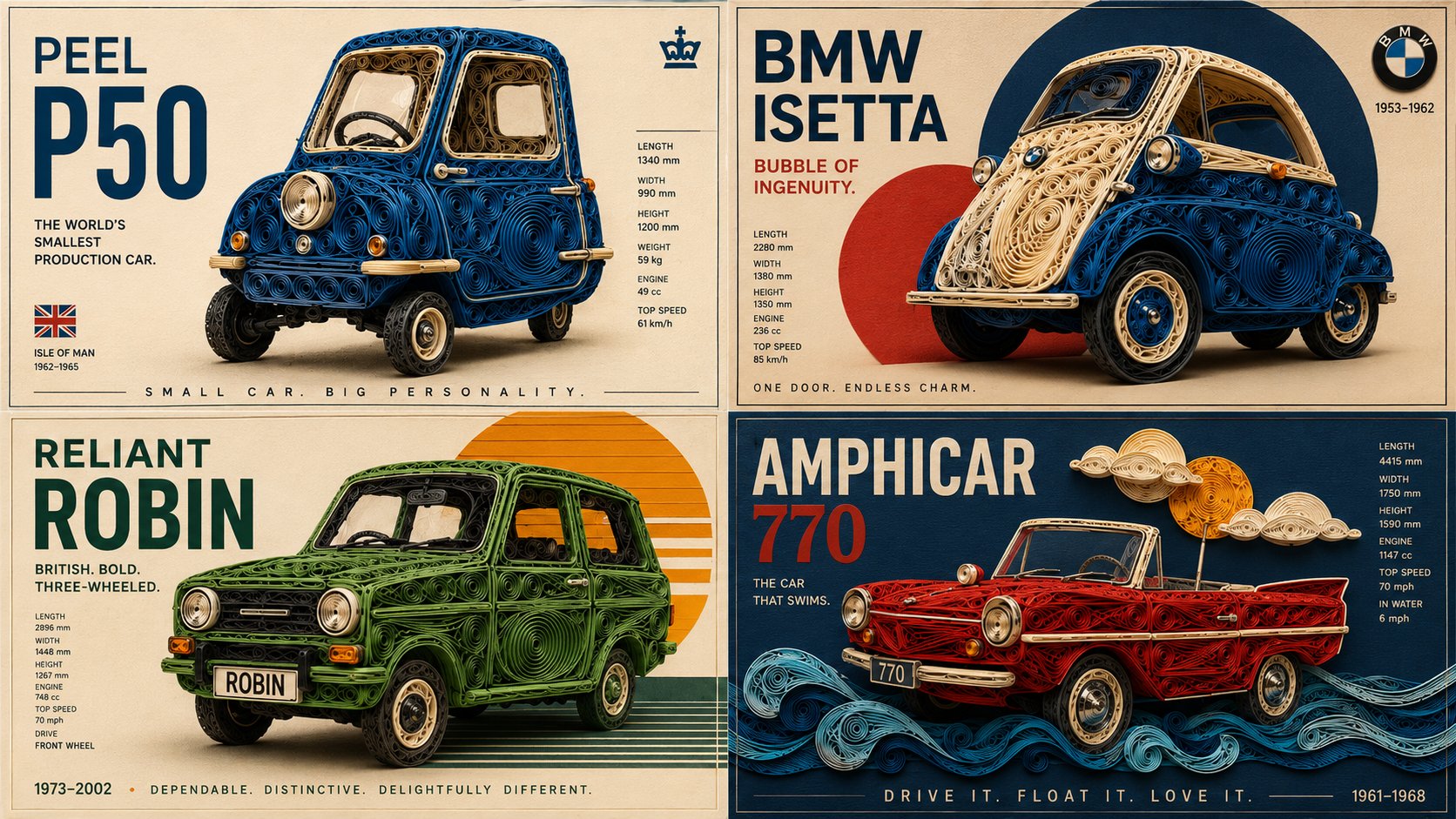
Four classic microcars illustrated in a vintage comparison chart
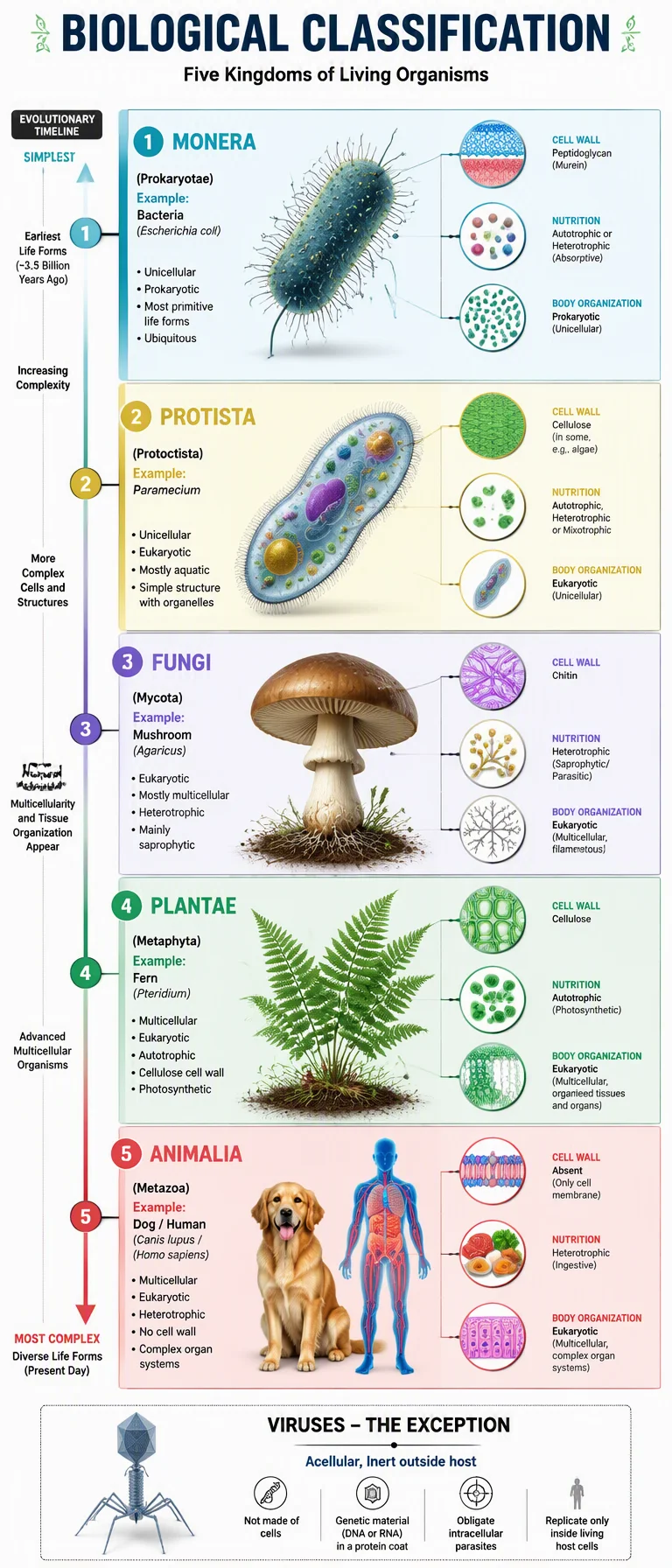
Biological classification infographic with microorganisms, plants, and animals

Build a clearer brief for GPT Image 2.5

Good image prompts explain what the image needs to communicate. These three starting points suit product teams, designers, and creators working on a specific visual outcome.

Product photos with a clear focal point

Name the product, materials, camera angle, surface, and lighting. For a skincare campaign, specify the bottle shape and label details to preserve, then describe the background and space for a headline. Upload a product reference when appearance matters more than invention.

Portraits and consistent visual direction

Describe the framing, expression, clothing, light, and setting. With a reference portrait, identify the features that should stay recognizable and the parts you want to change. A specific instruction such as changing only the setting is easier to review than a request to improve everything at once.

Posters and edits with a defined layout

Specify the visual hierarchy before adding decoration. Put short, exact text in quotation marks, describe where it belongs, and state what should stay unchanged in an edit. Review spelling, faces, product details, and small elements at full size before using the image in a finished design.

GPT Image 2.5 Flare and Sunburst

OpenAI describes two models in the GPT Image 2.5 family. Their official positioning provides a useful starting point for understanding the names in the model menu.

GPT Image 2.5 Flare

Everyday image creation

Flare

OpenAI positions GPT Image 2.5 Flare as its fast, high-quality model for everyday image generation. Its text and image inputs support briefs that begin with an idea or a visual reference.

GPT Image 2.5 Sunburst

Precision-focused image editing

Sunburst

OpenAI positions GPT Image 2.5 Sunburst as its most capable image generation and editing model, particularly for workflows where editing precision matters. Think carefully about which details must remain stable when writing an edit brief.

From prompt to a finished image

Keep your brief, settings, and results together while you explore a visual direction.

Describe

Write a specific visual brief

Explain the subject, intended use, composition, lighting, and style. Add reference images and identify what should remain unchanged.

Choose

Select a model and output settings

Choose Flare or Sunburst, then adjust the available quality, resolution, aspect ratio, background, and image count. Check the credit estimate before generating.

Refine

Compare, download, and iterate

Review the large preview alongside your recent results. Download the image you prefer or upload it as a reference for a more focused edit.

Tips for GPT Image 2.5 prompts

State the intended use first: a store product image, portrait, poster, social creative, or editorial illustration.

Give each reference a role. Explain which image defines the subject, which supplies the style, and which provides the composition.

Change one major requirement at a time so you can see what improved. Check exact text and product details before publishing.

GPT Image 2.5 questions

Start your next visual brief

Choose a model, add the details that matter, and keep your image iterations together in Lovimg.

Back to image generator